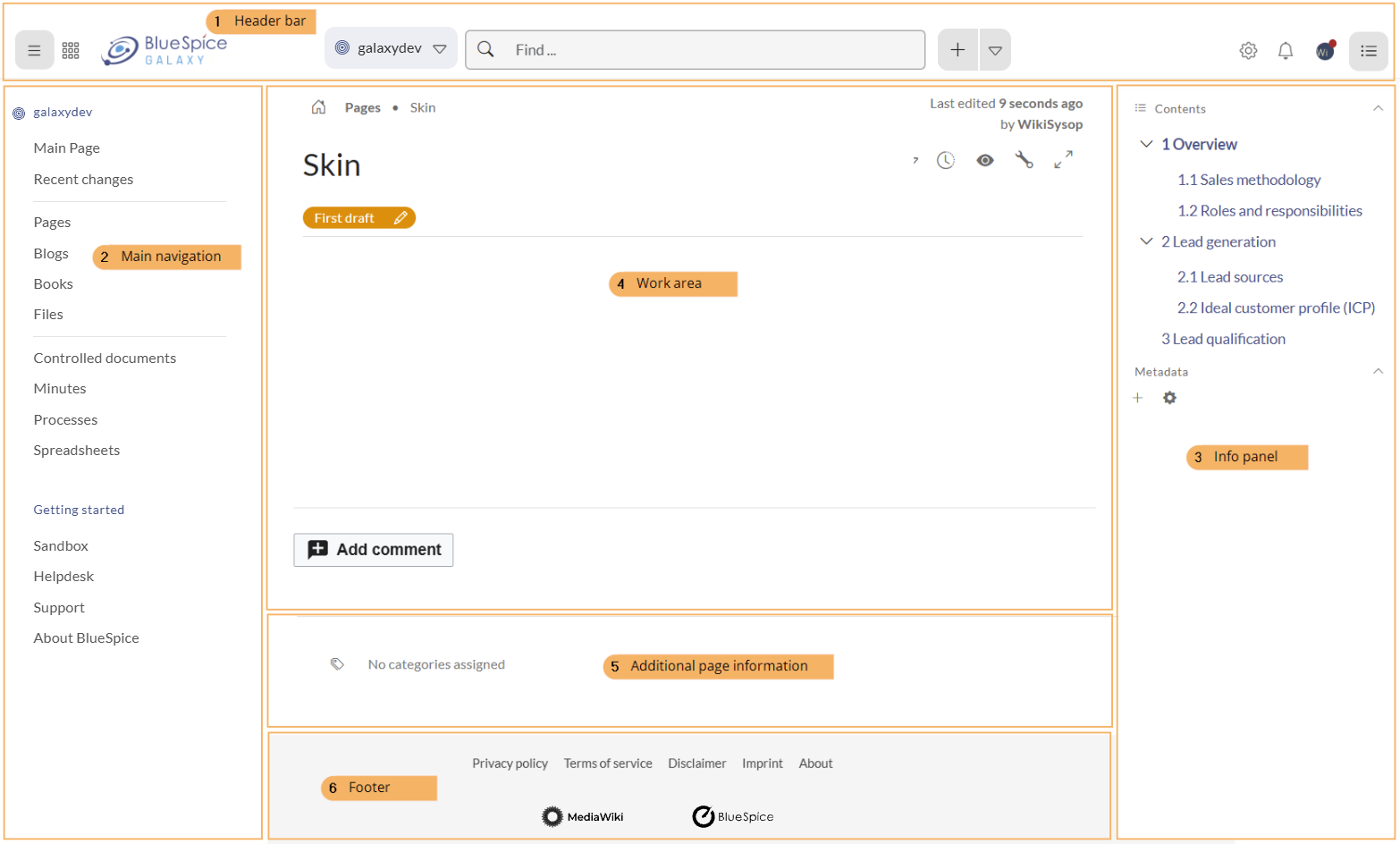
BlueSpiceEclipse is the skin for BlueSpice Galaxy. It provides a modular, component-based interface with a structured layout that separates global navigation, page-level tools, and content areas. The skin supports a configurable navigation sidebar, flexible toolbar elements. Its responsive design adapts to different screen sizes.
Page layout

| # | Element | Description |
|---|---|---|
| 1 | Header bar | Provides access to menus and houses the search bar and the "new content" creation button. |
| 2 | Main navigation
(Book navigation) |
The functionality of this navigation is configurable by admin users. |
| 3 | Info panel | Contains the Table of Contents of the current page. It also shows the page metadata (provided by extension NeoWiki). |
| 4 | Work area | All content is created and edited here. The work area contains the:
|
| 5 | Additional page information | Information such as page categories or page versions can be shown here. Each element in this area can alternatively be shown in the title area of the page. |
| 6 | Footer | The footer contains customizable links related to legal information as well as links to mediawiki.org and bluespice.com. |
Header bar
The Header bar provides access to menus and houses the search bar and the "new content" creation button.
| # | Element | Description |
|---|---|---|
| 1 | Main navigation toggle | Allows users to show and hide the main navigation. |
| 2 | Logo | The logo can be changed using the special page FlexiSkin. |
| 3 | Extended menu | Allows admin users to create an additional mega menu. The menu can be activated in the Config manager. This menu applies globally across all wikis. |
| 4 | Wiki list menu | Shows a list of featured wikis. Users can add any wiki as a favourite wiki. The list of favourites is user-specific. |
| 6 | Search field | Up to 10 page titles that match the search expression are displayed in a quick menu while the search term is being entered. Pressing the Enter key takes users to the Search center, which displays the results of a full-text search and allows to filter them.
|
| 7 | "New content" button | The New button allows to create a new page. Other "create"-actions are possible from the included select menu. |
| 8 | Wiki actions | Direct links to many special pages of the wiki. This menu is mainly geared towards wiki admins and maintainers. |
| 9 | Notifications menu | A red circle appears above the notifications icon if unread notifications exist. Opening the notifications menu shows the newest 10 notifications and removes them from the "unread" list. |
| 10 | User menu | Users manage their own settings, tasks and notifications from here. A red circle appears above the user avatar if unread notifications or open tasks exist. |
| 11 | Info panel toggle | Allows users to show and hide the info panel. |
Info panel
| # | Element | Description |
|---|---|---|
| 1 | Table of Contents | Shows the Table of Contents of a content page. By default, it is shown automatically if a page has more than 3 headings. Users can override this behavior in the page options. |
| 2 | Metadata | Metadata are the subjects of a page and entered via a form provided by the NeoWiki extension. |
Work area
Title area

| # | Element | Description |
|---|---|---|
| 1 | Breadcrumb navigation | The subpage path of the current page. It starts with a link to the Main Page of the wiki ("house" icon) and the A-Z index of the namespace of the page (page Special:Pages).
|
| 2 | Last edit info | |
| 3 | Page tools | Contains direct access to the following functions:
|
| 4 | Page title | Shows the page name or display title of the page. |
| 5 | Special properties in the title area | Shows the following page information by default:
Additionally, the following element can be shown here as well:
All elements can alternatively be moved or duplicated below the page content by admin users in the Config manager. |
Additional page information
This area displays the following elements by default:
- Page categories
Additional elements that are usually displayed in the title area of the page can optionally be configured in the Configuration manager to be displayed here.
Footer
The footer contains links to legal information as well as to external websites relating to MediaWiki. The links to the legal information can be managed by wiki administrators with the footer menu editor.