PDF export converts wiki pages and books into PDF files. PDF templates control the layout and formatting of the exported PDF, including the page orientation, cover page, header, footer, table of contents, links, and attachments.
Export a page or book
To export a page or book to PDF:
- Open the page to export.
- Open Page tools.
- Open More actions.
- Select Export as PDF.
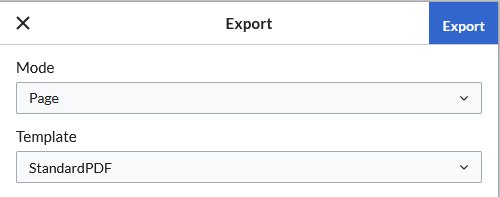
- Select the export settings.

Export modes
The available Mode options depend on the current page. Modes that are not applicable are not shown.
- Page: Exports the current page.
- Page with subpages: Exports the current page and all its subpages. This option is available only if the page has subpages.
- Page with linked pages: Exports the current page and pages that are directly linked from it. This option is available only if the page has linked pages.
- Book: Exports all pages of the book in the defined book order as a single PDF document. This option is available only when the current page is part of a book. When a book template is selected, the exported PDF also includes a cover page.
PDF templates
The Template setting determines the layout and formatting of the PDF:
- StandardPDF: Exports the page or pages without a cover page, unless the template has been customized.
- StandardBookPDF: Exports the page or pages with a cover page, unless the template has been customized.
Custom PDF templates can be created and configured as described in Create a PDF template.
Export media links and attachments
By default, media links that point directly to a file on the server add the corresponding file as an attachment to the exported PDF. This behavior is independent of the selected export mode.
This also applies to PDF files embedded with the Content Droplet PDF preview.
The Allow attachments template property controls whether linked files are added as PDF attachments. See PDF template properties.
Export pages with linked pages
When Page with linked pages is selected, links are processed as follows:
- Page links: Link to the corresponding page in the PDF. If the linked page is not included in the PDF, the link opens the page in the wiki.
- File links: Link to the corresponding file page.
- Mentions: Link to the corresponding user page.
The Disable links in PDF template property controls whether links to targets that are not included in the PDF are disabled. See PDF template properties.
Create a PDF template
Two PDF templates are available by default:
- StandardPDF: Template without a cover page.
- StandardBookPDF: Template with a cover page.
The default StandardPDF template uses the wiki logo configured in the skin settings. If no custom logo is configured, the default BlueSpice logo is used.
Copy an existing template
To create a PDF template:
- Go to
Special:PDF_templates. - Copy an existing template.
- Enter a name for the new template.
- Select Copy.
- Select Edit template to start customizing the template.
Select general template properties
- Select the page orientation and the general export properties.
- Select Next.
Configure properties such as the table of contents, links, and attachments.
Select the template elements
Select the checkboxes for the elements to include in the template:
- Header: Page header for the template pages.
- Footer: Page footer for the template pages.
- Document preface: Cover page.
- Document appendix: Additional page at the end of the PDF. It uses the same formatting as the content pages, including the header and footer, and is included in the PDF page count.
Select Configure for each selected element to design its layout.
Configure the header
The header can contain an image, usually the wiki logo, and text. The text can combine predefined parameters with custom text. To use an image other than the wiki logo, select Use custom logo and enter the name of an existing image or upload a new image.
Configure the footer
The footer can contain predefined system messages or custom text.
Localization system messages can be used when the PDF should adapt to the language settings of users. For example, the English system message This PDF is created automatically can be customized on MediaWiki:pdfcreator-pdf-disclaimer. The German language version can be customized on MediaWiki:pdfcreator-pdf-disclaimer/de.
Alternatively, enter custom text when language-specific output is not required. Leave a footer section blank to omit its text.
Configure the document preface
The document preface is the cover page. It is primarily used for book exports but can also be used for page exports.
The PDF export uses background images in the following order:
- If a bookshelf image exists, the export uses it for a Book PDF export.
- If no bookshelf image exists, the export uses the default image defined in the Configuration Manager.
- If a custom image is defined in the PDF template, the export uses the custom image for the Book PDF export.
To use no background image on the PDF cover page, remove the image definitions from all three locations.
For detailed information about creating custom cover sheets, see Custom cover sheets.
PDF template properties
It is possible to configure the following PDF template properties:
{
	"embed-page-toc": true,
	"nsPrefix": true,
	"attachments": true,
	"suppress-links": false,
	"no-redirect": true,
	"coverBackground": ""
}
| Label | Name | Default value | Description |
|---|---|---|---|
| Show table of contents | embed-page-toc
|
true
|
Includes the table of contents of each exported page. This applies to both the book table of contents and the table of contents of the individual pages it contains. If set to .pdfcreator-type-page .toc { display:none !important; }
In this case, a table of contents is generated only at the beginning of the PDF. .pdfcreator-type-page .toc { display:block !important; }
|
| Hide namespace prefix | nsPrefix
|
true
|
Suppresses the namespace prefix for page names in the header, footer, and PDF cover page. |
| Allow attachments | attachments
|
true
|
Adds files directly linked with Media: syntax as attachments to the PDF.
|
| Ignore redirect | no-redirect
|
false
|
If a link redirects to a different page, the target page is not included in the PDF. |
| Disable links in PDF | suppress-links
|
false
|
Replaces links with a span element if they do not link to a target within the PDF. |
| - | coverBackground
|
<File:filename.png>
|
Set programmatically when a custom cover background image is provided. |
PDF template elements
Each PDF template consists of the following elements, or slots:
| Template element | Description |
|---|---|
| Header | The page header of each PDF page. |
| Content | The layout of the page content. |
| Footer | The page footer of each PDF page. |
| Document preface | The cover page. It is primarily used for book exports but can also be used for page exports. |
| Document appendix | The last page of the PDF export. It has no predefined basic structure. |
| Styles | CSS style declarations for the classes used by the template elements. |
| Properties | The export properties described in PDF template properties. |
| Description | Internal notes for the template. The description does not affect the template itself. |
All templates are saved as subpages of MediaWiki:PDFCreator. The template subpages contain the syntax for the individual template elements.
Header
The basic structure of a header is:
<div class="pdfcreator-runningheaderfix">
	<table>
		<tr>
			<td>
				<div class="pdfcreator-runningheader-logo">
					{{{logo}}}
				</div>
			</td>
			<td>
				<h1 class="title">{{{title}}}</h1>
			</td>
		</tr>
	</table>
</div>
.pdfcreator-runningheaderfix is required to top-align the header on the page. It works together with the corresponding class declaration in the Styles tab. Both need to be modified together.Content
The content layout uses the following parameter:
{{{content}}}
Footer
The basic structure of a footer is:
<div class="pdfcreator-runningfooterfix">
	<table>
		<tr>
			<td>
				<span>{{int:pdfcreator-pdf-disclaimer}}</span>
			</td>
			<td>
				<span>{{int:pdfcreator-pdf-export-time}}:{{#time:d.m.Y|now}}</span>
			</td>
			<td>
				<span>{{int:pdfcreator-pdf-param-currentpagenumber-label}} </span>{{{currentpagenumber}}}
				<span> {{int:pdfcreator-pdf-param-totalpagescount-label}} </span>{{{totalpagescount}}}
			</td>
		</tr>
	</table>
</div>
.pdfcreator-runningfooterfix is required to top-align the footer on the page. It works together with the corresponding class declaration in the Styles tab. Both need to be modified together.Document preface
The document preface is the cover page. The basic structure for a book cover page is:
<div class="pdfcreator-intro">
	<div class="pdfcreator-intro-title">{{{title}}}</div>
</div>
.pdfcreator-intro is required to display the image for the {{{logo}}} parameter. Without this class, the {{{logo}}} parameter has no effect.
Configuration

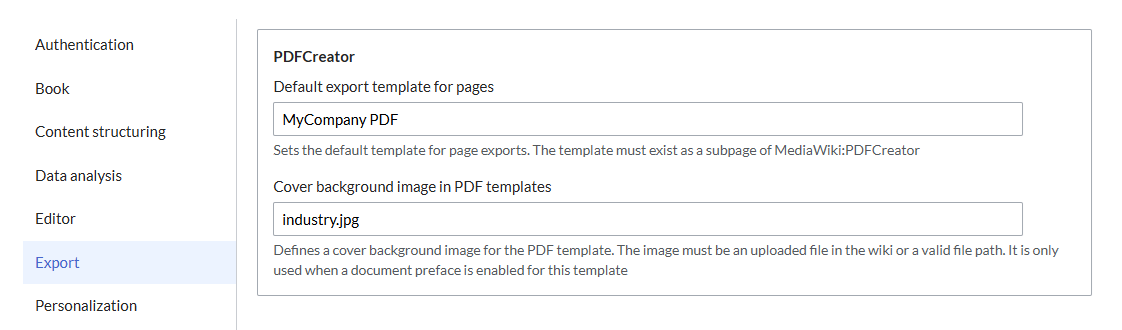
- Default export template for pages: The default template is shown when users select an export template in "Page" mode. It is also used when clicking on the PDF link for the Content Droplet PDF Link .
- Default cover background image: Admins can also set a default cover background image. It is applied whenever the document preface of the template contains the standard "intro"-wrapper: Default image:
<div class="pdfcreator-intro">
....
</div>
/app/bluespice/w/extensions/BlueSpiceBookshelf/data/common/images/bs-cover.png
The image path can be deleted. In this case, no image will be output by default. Alternatively, an uploaded image file can be specified.
If a book has its own bookshelf-image, this will be generated in the PDF when exporting directly from the special page "Books".
Prepare content for PDF export
The formatting of wiki content can affect the PDF output. Test the PDF output when working with complex tables or images.
Text-only tables
The following information applies to tables containing only text. Tables containing images follow different rules.
Column widths
When table content requires more space than the available PDF width, the column widths are recalculated to fit the available space while preserving the original table formatting as far as possible.
Use the following approaches to control column widths:
- No column widths and no table width: Column widths are determined by the content. The proportions of the table are generally preserved in the PDF.
- Ratio of column widths: Set a fixed pixel width for each column to preserve their relative proportions. The columns are resized proportionally to fit the available PDF width.
- Preserve selected column widths: To keep specific columns at their defined width, leave at least one column without a predefined width.
- Percentage widths: Set some or all column widths as percentages. These widths are reflected in the PDF output.
Long words
If a long word does not fit within a defined cell width, insert a soft hyphen. The hyphen is applied only when a line break is required.
Images in table cells
Images in table cells are resized to the defined cell width on the wiki page, but not during PDF export. For example, a 400px-wide image in a 200px-wide column is displayed at 200px on the wiki page, while the PDF export uses the actual 400px image size.
Size images to match the available cell width and test the PDF output.
When images are placed in multiple columns, the combined image width should not exceed 600px. For example, two images with a width of 300px each use the available space in the PDF.
The resulting PDF is shown below:
The example uses modified StandardPDF template styles with a smaller font size and additional table-cell padding:
/* Table styling for wikitable */
.wikitable th, .wikitable td {
    font-size:9pt;
    padding:10px
}
Landscape PDF export
PDF export can use landscape orientation for the entire PDF. Landscape orientation is defined in the PDF template.
To create a landscape template:
- Copy the StandardPDF template.
- Give the new template a name, for example
StandardPDF landscape. - Set the template orientation to Landscape.
Related Content Droplets
The following Content Droplets are related to PDF export:
| Droplet | Description |
|---|---|
| Book PDF link | Inserts a link to a book. Selecting the link immediately downloads the PDF. |
| PDF link | Inserts a link to the same or another page. Selecting the link immediately downloads the page as a PDF. |
| PDF preview | Opens the PDF directly in a PDF viewer on the page. |
| Exclude content in PDF | Wraps content in <pdfexcludestart />...<pdfexcludeend /> tags. Content between the tags is excluded from the PDF export. The inserted markers are not visible in view mode. |
| PDF page break | Inserts a manual page break in the PDF. The inserted page-break marker is not visible in view mode. |