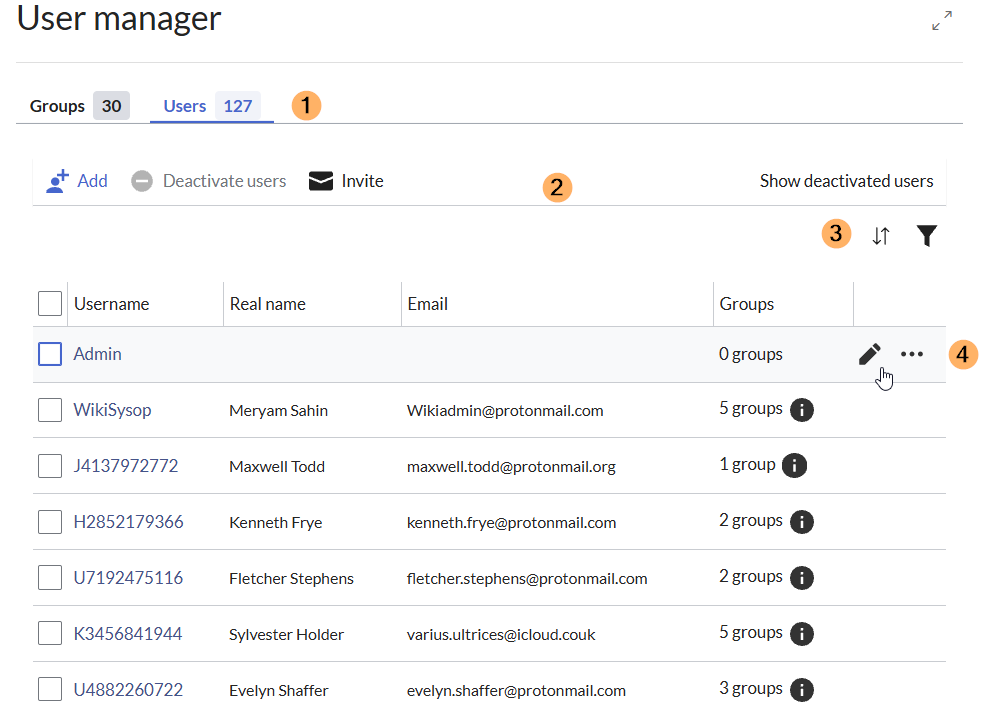
The user manager allows administrators to manage user accounts and user groups.
In the Wiki action menu, select Users to access the special page User manager.
Global user management:Users and groups are always managed in the Main wiki. The link Users in the Wiki actions menu of each subwiki links back to the User manager of the Main wiki.
Structure
The User manager contains four functional areas:
The 4 functional areas
Area
Name
Functionality
1
Groups / Users tabs
Shows the number of existing groups and users . Switch between tabs to manage users or groups.
2
User actions
Add user: Create a new user account and directly assign a temporary password. The user is required to change the temporary password during first login. It is possible to immediately assign the new user to a group. Alternatively, users can be invited to create their own account name and password.
Deactivate users: Deactivate the access for an existing user account.
Important:For compliance and traceability reasons, a user account cannot be deleted. If needed, user accounts can be anonymized or replaced with an IP address after a GDPR deletion request.
Invite: When you invite a new user, the wiki sends an email and the user can create their own username and password. It is not possible to assign this person to a group yet, because group assignments can only be made after a user page exists. In this case, users need to have edit permissions in the Main wiki.
Show deactivated users: Switch to the list of deactivated users. You can reactivate users from this view.
3
Sorting and filtering actions
Sort: The sort action allows to sort ascending or descending by column.
Filter: The filter actions allows to filter by column.
4
User row
When a user row receives focus, you can edit the properties and the password for the highlighted user account.
Edit user: Change the real name, email or group assignments.
Supplemental menu: Change the password for the user account or deactivate it.