Revision as of 16:27, 23 October 2026 by WikiSysop (talk | contribs) (Created page with "Content droplets integrate with the Visual Editor to let users insert predefined content snippets. == Add a droplet to a page == {{ContentDropletSelect}} # '''Click''' the Content droplets icon in the editor toolbar or type <code><nowiki><<</nowiki></code>. # '''Search''' for a droplet name in the search bar of the droplets menu or browse the droplets by category.File:Droplet_menu.png|none|alt=Content Droplets menu|thumb|550x550px|Content D...")
(diff) ← Older revision | Latest revision (diff) | Newer revision → (diff)
GlacierSkySapphire

Content droplets integrate with the Visual Editor to let users insert predefined content snippets.

Add a droplet to a page

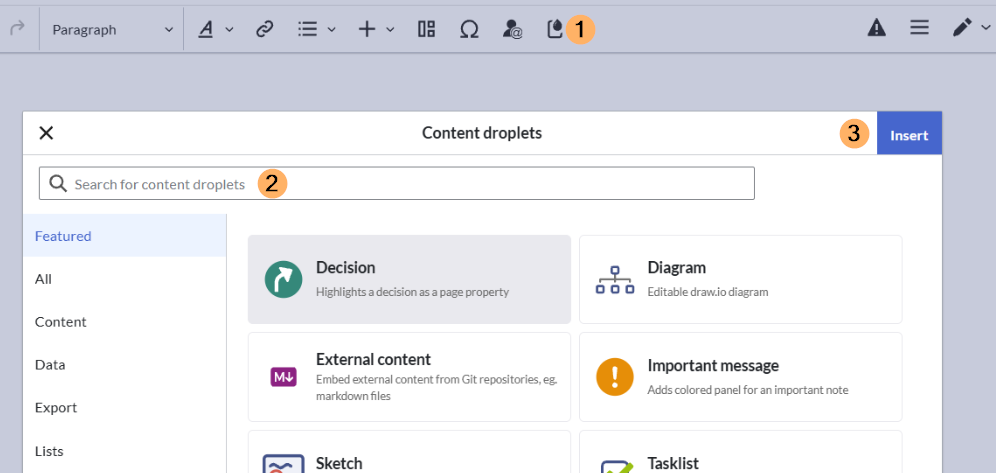
Content droplets menu
Selecting a Content droplet
  1. Open the Content droplets menu.
  2. Search for the name of the Content droplet.
  3. Insert the Content droplet on the page.
  4. Click the Content droplets icon in the editor toolbar or type <<.
  5. Search for a droplet name in the search bar of the droplets menu or browse the droplets by category.
    Content Droplets menu
    Content Droplets menu
  6. Select a droplet
  7. Click Insert.
{{{header}}}Some droplets open an inspector menu which contains another Insert button. Be sure to confirm that button as well.
Based on the type of droplet, you can continue with configuring the droplet as needed.