No edit summary |
No edit summary |
||
| Line 6: | Line 6: | ||
# {{Step select menu|link=Preferences|menu=User}}. | # {{Step select menu|link=Preferences|menu=User}}. | ||
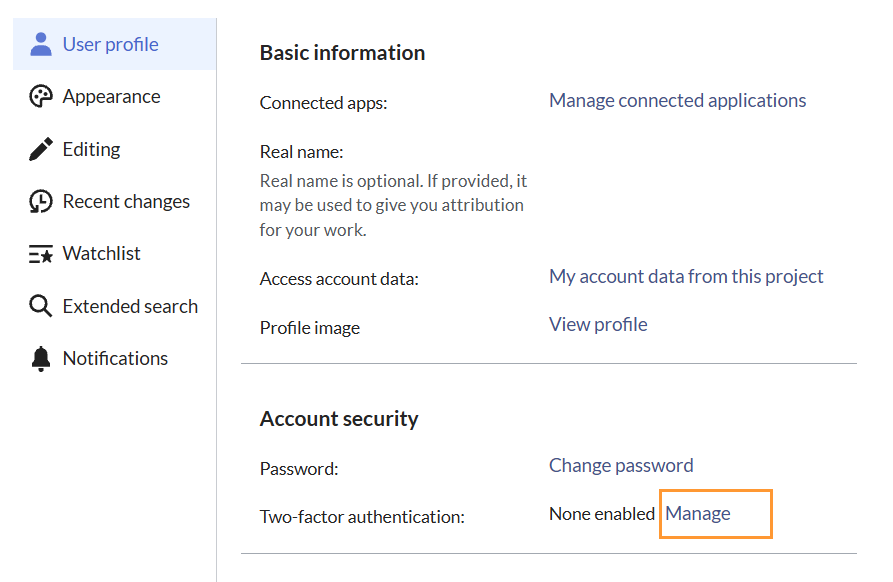
# In the User profile settings for Account security, select Manage for Two-factor authentication.<br />You will have to confirm your password again.[[File:Extension OATHAuth setting.png|center|thumb|550x550px]] | # In the '''User profile''' settings for '''Account security''', select '''Manage''' for Two-factor authentication.<br />You will have to confirm your password again.[[File:Extension OATHAuth setting.png|center|thumb|550x550px]] | ||
# Select one of the available '''Two-factor authentication''' options and follow the on-screen instructions. | # Select one of the available '''Two-factor authentication''' options and follow the on-screen instructions. | ||
Latest revision as of 09:41, 23 November 2026
Two-factor authentication (2FA) describes a user's proof of identity by means of a combination of two different and, in particular, independent components (factors). Typical examples are bank cards and PINs for ATMs, fingerprints and access codes in buildings, or passphrase and transaction number (TAN) for online banking. The extension OATHAuth implements 2FA in BlueSpice. It needs to be configured explicitely by each user.
Activate 2FA (User preferences)
- In the User menu, select Preferences.
- In the User profile settings for Account security, select Manage for Two-factor authentication.
You will have to confirm your password again.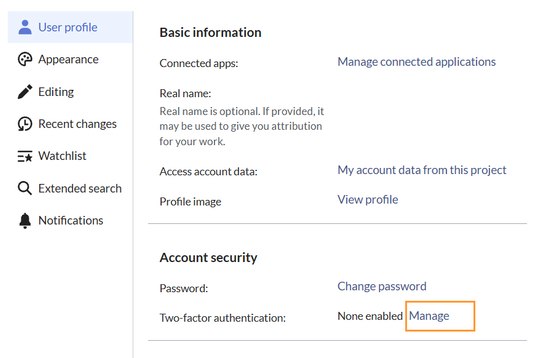
- Select one of the available Two-factor authentication options and follow the on-screen instructions.

Single-sign on (SSO)
If an external authentication source (SAML, OpenIDConnect und LDAP) is implemented, we recommend to execute 2FA within these sources and not inside the wiki. Compatibility with SAML, OpenIDConnect or LDAP have not yet been tested in BlueSpice.
2FA is not possible with true SSO (LDAP/Kerberos).