No edit summary |
No edit summary |
||
| Line 164: | Line 164: | ||
==Start a workflow== | ==Start a workflow== | ||
A workflow starts either manually on a page or automatically through a workflow trigger. Triggers also define in which namespaces workflows are available. For more information, refer to [[Extension/Workflows/ | A workflow starts either manually on a page or automatically through a workflow trigger. Triggers also define in which namespaces workflows are available. For more information, refer to [[Extension/Workflows/Triggers|Workflow triggers]]. | ||
To start a workflow: | To start a workflow: | ||
Revision as of 14:31, 9 November 2026
Workflows offer a structured and efficient way to manage content review and approval processes within the wiki. Built on the BPMN 2.0 standard, these workflows enable users to initiate page-based tasks such as approvals and feedback requests. Each workflow is designed to streamline collaboration, ensure quality assurance, and maintain transparency across editorial activities. By integrating these workflows into daily operations, organizations can foster accountability and improve the reliability of their documentation.
BlueSpice includes four standard workflows for page reviews. Administrators can add custom workflows, and workflow triggers can start workflows automatically.
Standard workflows
The four standard workflows request either feedback on a page or the approval of a page. The following table lists the workflows in the order of the sections on this page:
| Workflow type | Participants | Description |
|---|---|---|
| Single user approval | 1 user | Asks one user to vote on a page. A positive vote approves the page automatically. |
| Expert document control | 3 users | Assigns the editing, review, and approval of a page to three different users: an editor, a reviewer, and an approver. |
| Group feedback | 1 group | Asks the members of a user group to comment on a page. |
| Single user feedback | 1 user | Asks one user to comment on a page. |
Each standard workflow runs for 7 days. Two days before a workflow expires, the workflow initiator and the currently assigned users receive a notification. If the workflow is not completed within 7 days, it expires and is marked as not completed. The page returns to the status it had before the workflow started. Expired workflows appear in the Aborted view of the workflows overview.
Single user approval
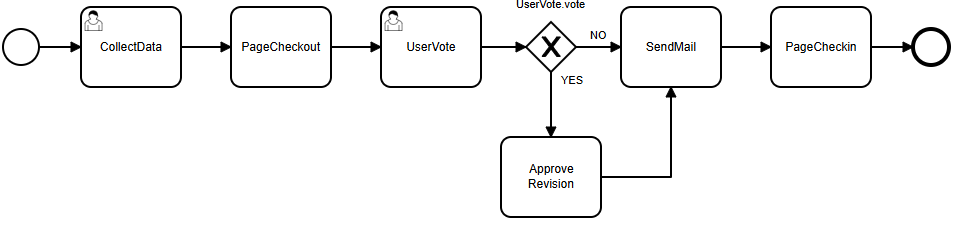
Single user approval asks one user to approve a draft page.
Purpose: Gets a draft page approved by a user with approval rights.
Prerequisite: The approval function must be enabled for the namespace of the page. An administrator enables Approvals for the namespace in the subwiki in the Namespace manager. For more information about the technical background, refer to ContentStabilization.
Workflow instances: Only one approval workflow can run on a page at a time.

| Activity | Description |
|---|---|
CollectData
|
Collects the settings that the workflow initiator enters in the start form. In addition to Instructions and Send report to, the form contains the following field:
For more information, refer to Start form fields. |
PageCheckout
|
Locks the page for editing. No one can edit the page while it is checked out, including the assigned user. |
UserVote
|
Asks the assigned user to approve or decline the page. The user can add a comment or delegate the task. If the user declines, the workflow skips the ApprovePage activity, and the page keeps its previous status. The workflow initiator receives an email with the voting result.
|
ApprovePage
|
Sets the page to approved status. This activity runs only if the assigned user approves the page. |
SendMail
|
Sends the email report to the recipient specified in Send report to. |
PageCheckin
|
Unlocks the page. |
Expert document control
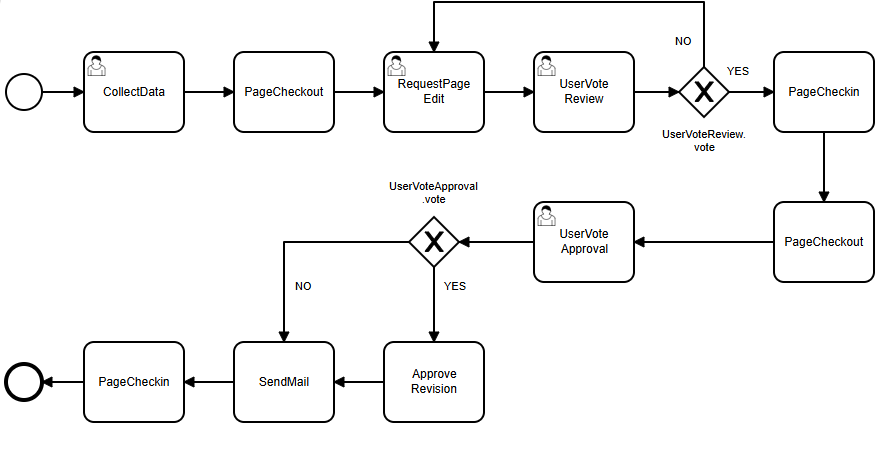
Expert document control has a page edited, reviewed, and approved by three different users.
Purpose: Gets a draft page approved according to the four-eyes principle.
Prerequisite: The approval function must be enabled for the namespace of the page. An administrator enables Approvals for the namespace in the subwiki in the Namespace manager. For more information about the technical background, refer to ContentStabilization.
Workflow instances: Only one approval workflow can run on a page at a time.

| Activity | Description |
|---|---|
CollectData
|
Collects the settings that the workflow initiator enters in the start form. In addition to Instructions and Send report to, the form contains the following field:
For more information, refer to Start form fields. |
PageCheckout
|
The page is locked for users who do not participate in the workflow. Only the Editor (first workflow participant) can edit the page during checkout. While the Reviewer (second participant) of the workflow is reviewing the page, the page stays checked-out to thecan edit the page can edit the page during checkout.checkout. in case the Reviewer requests more edits. |
EditPage
|
The Editor user can edit the page and completes the task without comment. |
UserVote
|
After the Editor step has been completed, the Reviewer user can review the page and submit a vote. Editing by the Reviewer is not possible. As an alternative, the Reviewer can delegate the task. If the vote is positive (Approve), the workflow continues. If the Reviewer rejects, the workflow goes back to the Editor.
The workflow initiator gets an email about the voting result. |
PageCheckin
|
After the Reviewer submits a positive vote (accept), the page is checked in and the workflow continues. |
PageCheckout
|
In this step, the page checkout locks the page for editing completely. The Approver user will not be able to change the page, but needs to approve it. |
ApprovePage
|
The Approver can either complete or delegate the task. After the Approver (or the delegate) finishes the assigned task, the page is set from "draft" to "approved" status if the page was in draft status (only if the approver submits a positive vote). If not, this step is skipped. |
SendMail
|
Sends the email report to the recipient specified in Send report to, if a recipient is specified. |
PageCheckin
|
Unlocks the page. |
Group feedback
Group feedback asks the members of a user group to comment on a page.
Purpose: Collects feedback on a page from the members of a user group.
Prerequisite: The group must exist in the user manager (Special:UserManager).
Workflow instances: Several feedback workflows can run on a page at the same time, independently of one another.

| Activity | Description |
|---|---|
CollectData
|
Collects the settings that the workflow initiator enters in the start form. In addition to Instructions and Send report to, the form contains the following fields:
For more information, refer to Start form fields. |
GroupFeedback
|
Asks all members of the group to give feedback in a comment field. The members can respond in any order. |
SendMail
|
Sends the email report to the recipient specified in Send report to, if a recipient is specified. |
Single user feedback
Single user feedback asks one user to comment on a page.
Purpose: Collects feedback on a page from a single user.
Workflow instances: Several feedback workflows can run on a page at the same time, independently of one another.

| Activity | Description |
|---|---|
CollectData
|
Collects the settings that the workflow initiator enters in the start form. In addition to Instructions and Send report to, the form contains the following field:
For more information, refer to Start form fields. |
UserFeedback
|
Asks the assigned user to comment on the page. |
SendMail
|
Sends the email report to the recipient specified in Send report to, if a recipient is specified. |
Start a workflow
A workflow starts either manually on a page or automatically through a workflow trigger. Triggers also define in which namespaces workflows are available. For more information, refer to Workflow triggers.
To start a workflow:
- Open the page.
- Open More page actions and select Start a workflow.
- Select one of the available workflows.
- Select Next. A dialog with the start form opens.
- Fill in the fields of the start form.
- Select Start.
The workflow starts, and a banner at the top of the page shows that a workflow is running. For approval workflows, the banner also shows that the page is locked.
Start form fields
The start form contains the following fields in all standard workflows. Each workflow adds fields for the assigned users or group. For more information, refer to the activity tables in Standard workflows.
| Field | Description |
|---|---|
| Instructions | Provides a comment or instructions that help the assigned users understand their task. |
| Send report to | Defines the email address or username that receives an email report with the results when the workflow ends. If a username is entered, the user account must have an email address in the user administration. Otherwise, the report cannot be sent. |
Complete a workflow task
Users with an assigned task receive a system notification. They also receive an email notification if an email address is saved for their user account. All tasks assigned to a user appear on the My tasks page. The User dashboard in the user menu additionally shows all active workflows that the user is assigned to.
The task form opens from the banner on the page or from the My tasks page.
To vote on a page:
- Open the task from the banner on the page, from My Workflows, or from My tasks. The User vote form opens.
- Select Approve or Decline.
- Enter a comment in Comment, if needed.
- Select Submit.
The workflow initiator receives an email with the voting result.
Assigned users in approval workflows can delegate their task to another user. After delegation, the new user is considered assigned and receives all further notifications for assigned users.
To delegate a task:
- Open the task from the banner on the page or from My tasks.
- Select Delegate this task.
- In Delegate to, enter the user who takes over the task.
- Enter a Delegation comment, if needed.
- Select Submit.
To return to the User vote form without delegating the task, select Do not delegate.
To give feedback on a page:
- Open the task from the banner on the page, from My Workflows, or from My tasks.
- Enter the feedback in the comment field.
- Submit the form.
Track workflows and tasks
A banner at the top of a page shows that a workflow is running on the page. For approval workflows, the banner also shows that the page is locked.
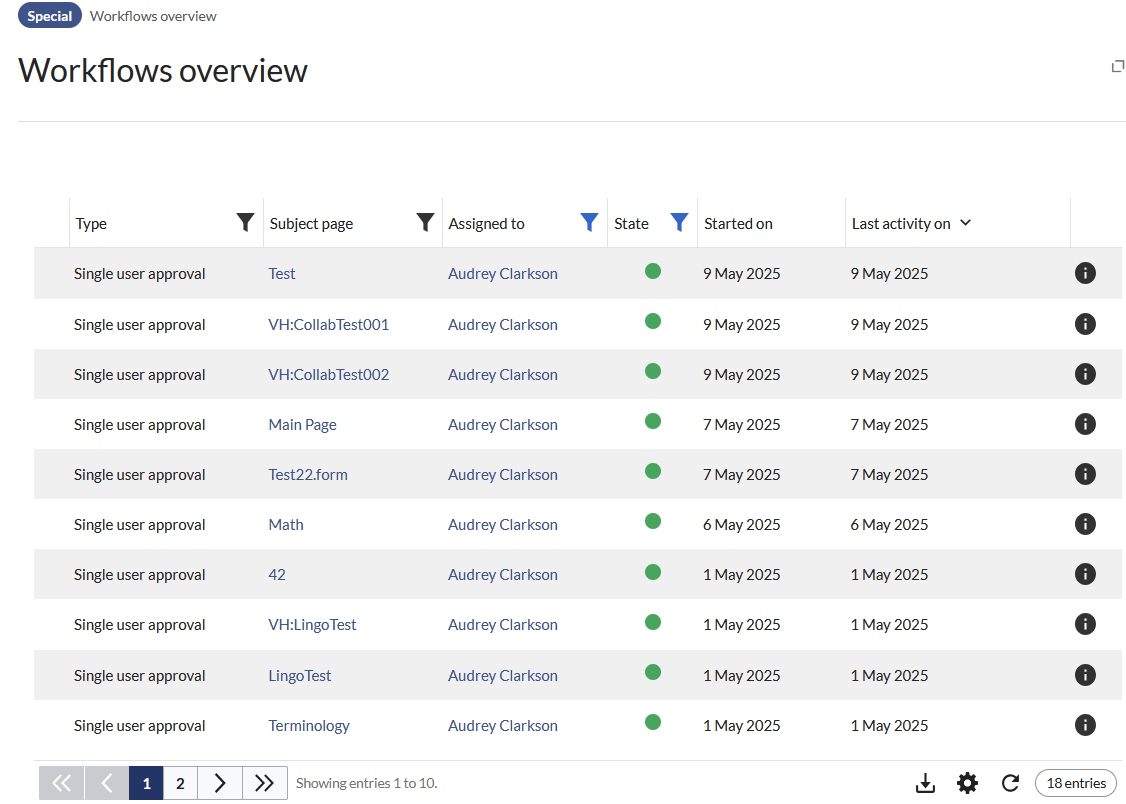
The special page Special:WorkflowsOverview lists all workflows in the wiki. The views Active, Aborted, and Finished filter the list by workflow state. For each workflow, the list shows the workflow type, the subject page, the assigned users, the state, the start date, and the date of the last activity. An information icon opens more details about the workflow.

Users see their own tasks on the My tasks page and their active workflows in the User dashboard in the user menu.
Workflow triggers
Workflow triggers start workflows automatically under defined conditions, for example when a page is edited. Triggers also define in which namespaces manual and automatic workflows are available. Editors configure triggers on the page Special:WorkflowTriggers. This page can be reached by selecting Wiki actions > Workflow triggers under the menu heading Editing. For more information, refer to Workflow triggers.
Exclude a page from automatic workflows
The behavior switch __NOWORKFLOWEXECUTION__ prevents triggers from starting workflows on an individual page. Any user with edit rights for the page can apply this setting.
In the visual editor, the setting is available under Page Options > Advanced settings. The setting inserts __NOWORKFLOWEXECUTION__ into the page source.
Custom workflows
In addition to the standard workflows, administrators can add custom workflows. A custom workflow is a BPMN diagram in XML format that contains custom activities.
A custom workflow can also be imported by uploading a XML file with Special:Import in the subwiki. Importing requires editor rights in the subwiki.
For a list of the predefined activities, refer to Workflow activities. For step-by-step instructions, refer to the tutorial for creating a custom workflow.
Notifications
Notification events
Workflows send two kinds of notifications:
- Generic: Sent for every workflow and activity type.
- Activity-specific: Sent by individual activities in addition to the generic notifications.
| Triggering event | Recipients | Generic | Notes |
|---|---|---|---|
| Task started
(task assigned) |
All assigned users | Yes | Triggered only for activities of the type UserInteractiveActivity, which means only for activities with assigned users.
|
| Task delegated | User to whom the task was delegated | No | Specific to the UserVote activity. After delegation, the new user is considered assigned and receives all further notifications for assigned users.
|
| Vote submitted
( |
Workflow initiator | Yes | Informs the workflow initiator about the voting result. |
| Workflow expires soon
( |
Workflow initiator and all currently assigned users | Yes | |
| Workflow expired | Workflow initiator and all currently assigned users | Yes | Expiry is a type of abort. The notification is the same as for an aborted workflow and states expiry as the reason. |
| Workflow aborted
(manually or automatically) |
Workflow initiator and all users assigned to the current task at the time of the abort | Yes | Users assigned to earlier tasks do not receive this notification. |
| Workflow ended
(only when the workflow ends normally, not when it is aborted) |
Workflow initiator | Yes |
Notification delivery
All users receive system notifications. This subscription cannot be disabled. Email notifications are optional, and users subscribe to them in their preferences.
The wiki sends system notifications immediately after the triggering event. It sends email notifications asynchronously when runJobs.php runs. This behavior applies to all notifications in the wiki, not only to workflow notifications.
Permissions
The Workflows extension uses the following permissions:
| Permission | Included in role | Description |
|---|---|---|
workflows-view
|
reader | Allows viewing workflow elements, for example the list of workflows running on a page. Allows viewing the page Special:WorkflowsOverview.
|
workflows-execute
|
editor, reviewer, admin | Allows starting a workflow and completing a task. |
workflows-admin
|
admin | Allows aborting, restoring, and administering all workflows. Allows viewing and editing the page MediaWiki:WorkflowTriggers.
|