No edit summary |
No edit summary |
||
| Line 15: | Line 15: | ||
# Insert the content droplet on the page. | # Insert the content droplet on the page. | ||
# Fill in the information for the data range: | # Fill in the information for the data range: | ||
## ''Spreadsheet page:'' Name of the existing spreadsheet page | ## ''Spreadsheet page:'' Name of the existing spreadsheet page. | ||
## ''Range to select:'' A continuous range of cells, separated by a colon (for example: <code>A1: | ## ''Range to select:'' A continuous range of cells, separated by a colon (for example: <code>A1:D5</code>) | ||
## ''Format:'' ''Table'' creates a table of class "wikitable". ''Plainlist'' creates a list of values. | ## ''Format:'' ''Table'' creates a table of class "wikitable". ''Plainlist'' creates a list of values. | ||
## ''Separator:'' The character that separates the values in a list (for example: a comma). | ## ''Separator:'' The character that separates the values in a list (for example: a comma). | ||
| Line 22: | Line 22: | ||
The droplet inserts a tag like the following on the page. You can also enter it manually in source editing mode: | The droplet inserts a tag like the following on the page. You can also enter it manually in source editing mode: | ||
<sheetdata page="Spreadsheet:Monthly Workforce Data 2026" separator="," format="table" range="A1:D5" /> | |||
== List of all spreadsheets == | == List of all spreadsheets == | ||
Administrators can show or hide a list of all spreadsheets under the [[:File:Skin/Eclipse?action=edit&redlink=1|entrypoint links in the main navigation]]. You can also link directly to the page ''Special:SpreadsheetList''. | Administrators can show or hide a list of all spreadsheets under the [[:File:Skin/Eclipse?action=edit&redlink=1?action=edit&redlink=1|entrypoint links in the main navigation]]. You can also link directly to the page ''Special:SpreadsheetList''. | ||
Revision as of 14:00, 29 October 2026
Sapphire
You can create spreadsheets directly in the wiki, enter and calculate data in a familiar table layout, and display selected data on other pages.
Create a spreadsheet
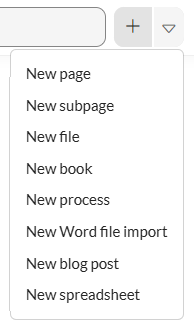
- Select New spreadsheet from the New menu.
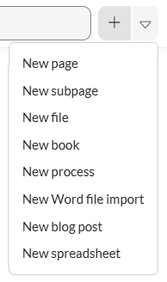
Create spreadsheet - Enter a name for your spreadsheet.
- Click Create. The spreadsheet opens in edit mode.
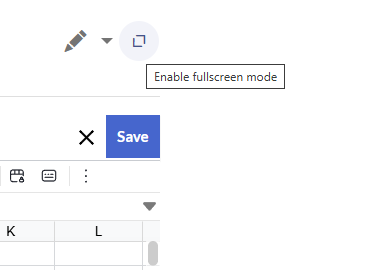
- Add your data. If you need more room, for example for many columns, switch to fullscreen view.
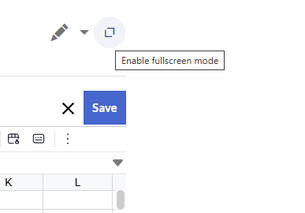
Enable fullscreen mode - Save your spreadsheet.


The spreadsheet is automatically saved in the Spreadsheet namespace. All spreadsheets are listed on the page Special:Spreadsheets.
Re-use data ranges
You can include a range of continuous data from a wiki spreadsheet on another page.
- Open the Content droplets menu in visual editing mode.
- Search for Spreadsheet data.
- Insert the content droplet on the page.
- Fill in the information for the data range:
- Spreadsheet page: Name of the existing spreadsheet page.
- Range to select: A continuous range of cells, separated by a colon (for example:
A1:D5) - Format: Table creates a table of class "wikitable". Plainlist creates a list of values.
- Separator: The character that separates the values in a list (for example: a comma).
The droplet inserts a tag like the following on the page. You can also enter it manually in source editing mode:
| Month | Engineering HC | Sales HC | Product HC |
| Jan | 120 | 80 | 40 |
| Feb | 123 | 78 | 41 |
| Mar | 126 | 76 | 42 |
| Apr | 131 | 80 | 43 |
List of all spreadsheets
Administrators can show or hide a list of all spreadsheets under the entrypoint links in the main navigation. You can also link directly to the page Special:SpreadsheetList.