No edit summary |
No edit summary |
||
| Line 1: | Line 1: | ||
== About the User manager == | == About the User manager == | ||
The user manager allows administrators to manage user accounts and user groups. | |||
{{Textbox|boxtype=important|header=Global user management:|text=Users and groups are always managed in the Main wiki. The link '''Users''' in the '''Wiki actions''' menu of each subwiki links back to the Main wiki | {{Step select menu|menu=Wiki action|link=Users}} to access the special page '''User manager'''. | ||
{{Textbox|boxtype=important|header=Global user management:|text=Users and groups are always managed in the Main wiki. The link '''Users''' in the '''Wiki actions''' menu of each subwiki links back to the '''User manager''' of the Main wiki.|icon=yes}} | |||
== Structure == | == Structure == | ||
| Line 36: | Line 37: | ||
* '''Edit user:''' Change the real name, email or group assignments. | * '''Edit user:''' Change the real name, email or group assignments. | ||
* '''Supplemental menu:''' Change the password for the user account or deactivate it. | * '''Supplemental menu:''' Change the password for the user account or deactivate it. | ||
|} | |} | ||
Revision as of 10:45, 26 October 2026
GlacierSkySapphire
About the User manager
The user manager allows administrators to manage user accounts and user groups. In the Wiki action menu, select Users to access the special page User manager.
Global user management:Users and groups are always managed in the Main wiki. The link Users in the Wiki actions menu of each subwiki links back to the User manager of the Main wiki.
Structure
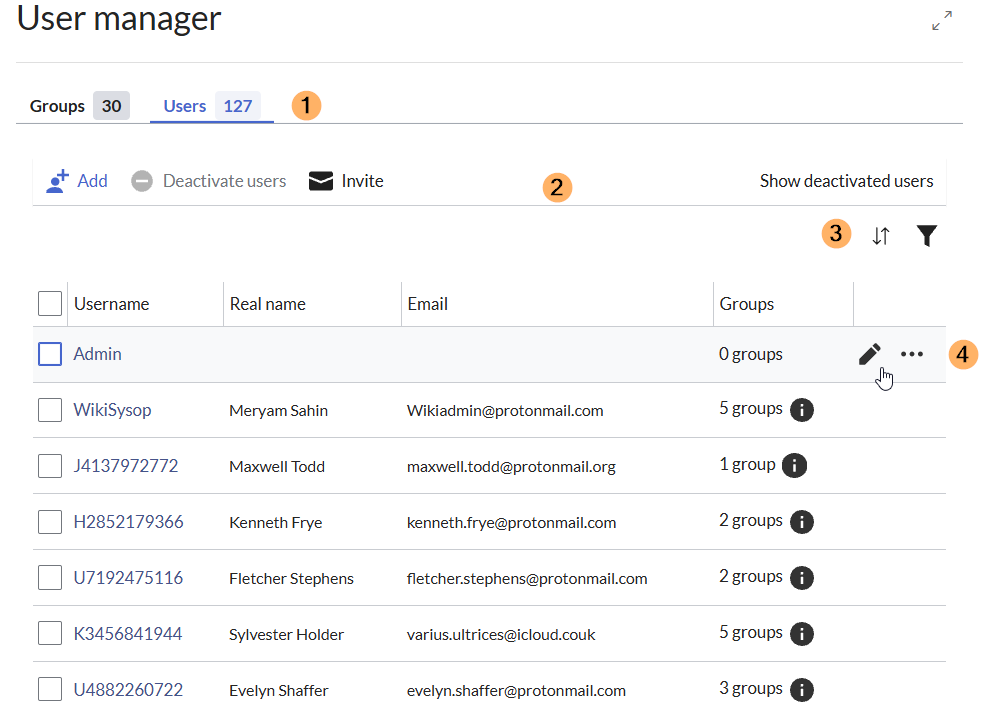
The User manager contains four functional areas:

| Area | Name | Functionality |
|---|---|---|
| 1 | Groups / Users tabs | Shows the number of existing groups and users . Switch between tabs to manage users or groups. |
| 2 | User actions |
|
| 3 | Sorting and filtering actions |
|
| 4 | User row | When a user row receives focus, you can edit the properties and the password for the highlighted user account.
|