Created page with "{{DISPLAYTITLE:Context menu}} '''ContextMenu''' replaces the default browser context menu with wiki functions - depending on the context and user permissions. ==Using the context menu== The context menu opens when right-clicking components that support the ContextMenu functionality. These components consist of internal links and file links. alt=|center|thumb|Context menu on a file (image) On internal links, the context menu display quick li..." |
No edit summary |
||
| Line 5: | Line 5: | ||
==Using the context menu== | ==Using the context menu== | ||
The context menu opens when right-clicking components that support the ContextMenu functionality. These components consist of internal links and file links. | The context menu opens when right-clicking components that support the ContextMenu functionality. These components consist of internal links and file links. | ||
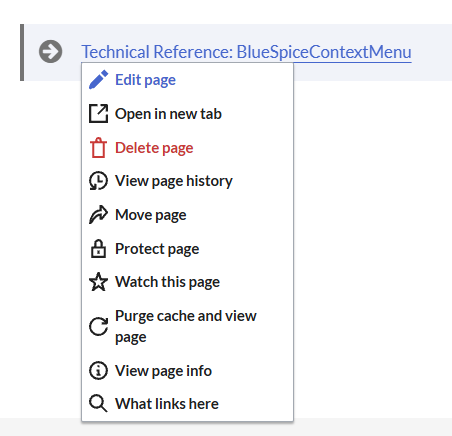
[[File:Extension BlueSpiceContextMenu example.png|alt=Open context menu on a text link|center|thumb|350x350px|Context menu]] | |||
On internal links, the context menu display quick links for basic page actions, like: | |||
*Edit page | |||
*View page history | |||
*Move page | |||
*Delete page | |||
On file links, some additional options are shown, like: | On file links, some additional options are shown, like: | ||
*Open file page | |||
*Download file | |||
*Upload new version of the file | |||
*Open files using client application (when available) | |||
The exact content of the context menu depends on the wiki configuration. | |||
==Settings== | ==Settings== | ||
The following mode settings for the context menu are located in the user preferences (page <code>Special:Preferences</code>), in the section '''Appearance:''' | |||
*Click on right mouse button and pressing <code>CTRL</code> (Normal right mouse button will show default browser menu) | |||
*Click on right mouse button (Pressing <code>CTRL</code> will show default browser context menu) | |||
__FORCETOC__ | |||
Latest revision as of 15:00, 16 November 2026
GlacierSkySapphire
ContextMenu replaces the default browser context menu with wiki functions - depending on the context and user permissions.
Using the context menu
The context menu opens when right-clicking components that support the ContextMenu functionality. These components consist of internal links and file links.

On internal links, the context menu display quick links for basic page actions, like:
- Edit page
- View page history
- Move page
- Delete page
On file links, some additional options are shown, like:
- Open file page
- Download file
- Upload new version of the file
- Open files using client application (when available)
The exact content of the context menu depends on the wiki configuration.
Settings
The following mode settings for the context menu are located in the user preferences (page Special:Preferences), in the section Appearance:
- Click on right mouse button and pressing
CTRL(Normal right mouse button will show default browser menu) - Click on right mouse button (Pressing
CTRLwill show default browser context menu)