No edit summary |
No edit summary |
||
| Line 3: | Line 3: | ||
{{VEinsertDroplets|name=Message|inspector=1}} | {{VEinsertDroplets|name=Message|inspector=1}} | ||
The available message types are: Note, Important, Warning, Tip, Success, Message. | |||
[[File:Extension ContentDroplets - Textbox types.png|alt=Screenshot with all available message banner types|center|thumb|650x650px|Textbox types]] | [[File:Extension ContentDroplets - Textbox types.png|alt=Screenshot with all available message banner types|center|thumb|650x650px|Textbox types]] | ||
| Line 34: | Line 33: | ||
|Sets the content of the box. The parameter accepts wikitext. | |Sets the content of the box. The parameter accepts wikitext. | ||
|} | |} | ||
== | == Customize this template == | ||
{{SharedResourceInfo}} | {{SharedResourceInfo}} | ||
By default, | === Adjust the alignment === | ||
By default, the box is displayed in full-width. This means that it is displayed below any image that is used directly before the box and that is set to text-wrap. | |||
To keep the box within the text-flow, you can make the following change in <code>Template:</code><code>Textbox/styles.css</code>: | |||
Before: | Before: | ||
| Line 74: | Line 65: | ||
</syntaxhighlight> | </syntaxhighlight> | ||
[[File:Extension ContentDroplets Textbox text-wrap.png|alt=Message of type "Note" to the side of an image after changing the style sheet|center|thumb|650x650px|Message that wraps around an image after adjusting the style sheet]] | |||
Revision as of 18:02, 13 November 2026
The Message droplet inserts a message box into a page. A message box highlights information, for example a note, a tip, or a warning. Each box type has its own colors and icon. The droplet is based on Template:Textbox.
Insert a message box
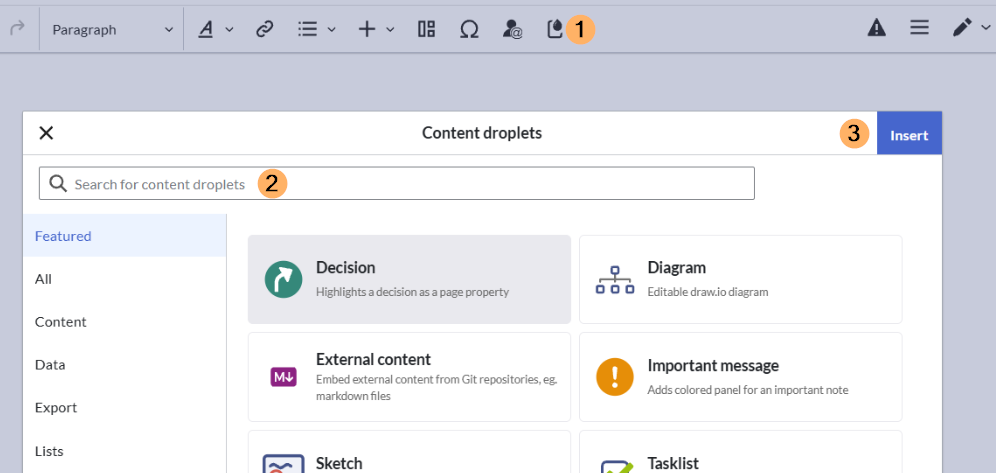
- Select the Content droplets action in the editor toolbar.
- Filter for the Content droplet Message.
- Insert the content droplet. An inspector menu opens.

The available message types are: Note, Important, Warning, Tip, Success, Message.

Parameters
| Parameter | Template parameter | Description |
|---|---|---|
| Show icon | icon
|
Shows the icon of the box type. Allowed value in wikitext: yes. If the parameter is empty, the box has no icon.
|
| Box type | boxtype
|
Determines the type of the box. Each type has its own border color, background color, and icon.
Allowed values in wikitext (case-sensitive): The colors are defined in |
| Headline | header
|
Shows a bold header above the text. The parameter is optional. If the parameter is empty, the box has no header. |
| Text | text
|
Sets the content of the box. The parameter accepts wikitext. |
Customize this template
admin info
Shared resource template
Template: is a standard system template. The template and its style sheet are maintained centrally in the Shared resources wiki. Changes affect all wikis, unless the template also exists in an individual wiki.
To change the template for a single wiki only, copy the template to that wiki and make the changes there. Changes to the copy affect only the individual wiki.
Adjust the alignment
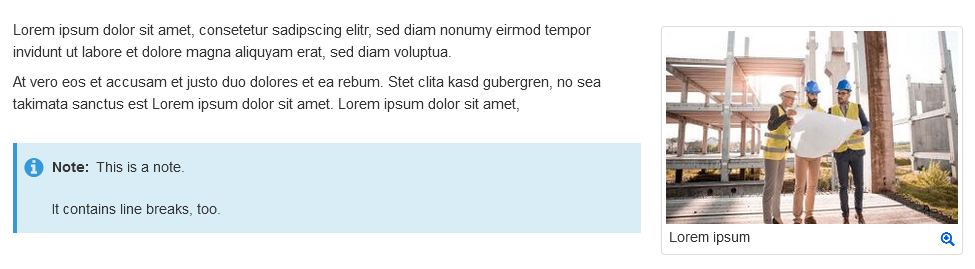
By default, the box is displayed in full-width. This means that it is displayed below any image that is used directly before the box and that is set to text-wrap.
To keep the box within the text-flow, you can make the following change in Template:Textbox/styles.css:
Before:
.cd-textbox {
	padding: 14px;
	margin: 2em 0 1em 0;
	display: table;
	position:relative;
	width: 100%;
	clear:both;
}
After:
.cd-textbox {
	padding: 14px;
	margin: 2em 0 1em 0;
	display: table;
	position:relative;
	width: 100%;
	overflow:hidden;
}