No edit summary |
No edit summary |
||
| Line 8: | Line 8: | ||
By default, the page status is displayed in the title area of every page with approval function . | |||
Alternatively, the status info can be moved below the page content with a skin setting for BlueSpiceDiscovery in the [[Extension/BlueSpiceConfigManager#Positioning of skin elements|Configuration manager]]. | Alternatively, the status info can be moved below the page content with a skin setting for BlueSpiceDiscovery in the [[Extension/BlueSpiceConfigManager#Positioning of skin elements|Configuration manager]]. | ||
| Line 14: | Line 15: | ||
===First drafts=== | ===First drafts=== | ||
When a new page is created and saved for the first time, its status is F'''irst draft''' until the page gets approved. By default, first drafts are visible to all users with read permissions. However, this can be restricted to individual user groups in the settings of the [[Extension/ContentStabilization#Configuration|Configuration manager.]] | When a new page is created and saved for the first time, its status is F'''irst draft''' until the page gets approved. By default, first drafts are visible to all users with read permissions. However, this can be restricted to individual user groups in the settings of the [[Extension/ContentStabilization#Configuration|Configuration manager.]] | ||
=== Drafts === | |||
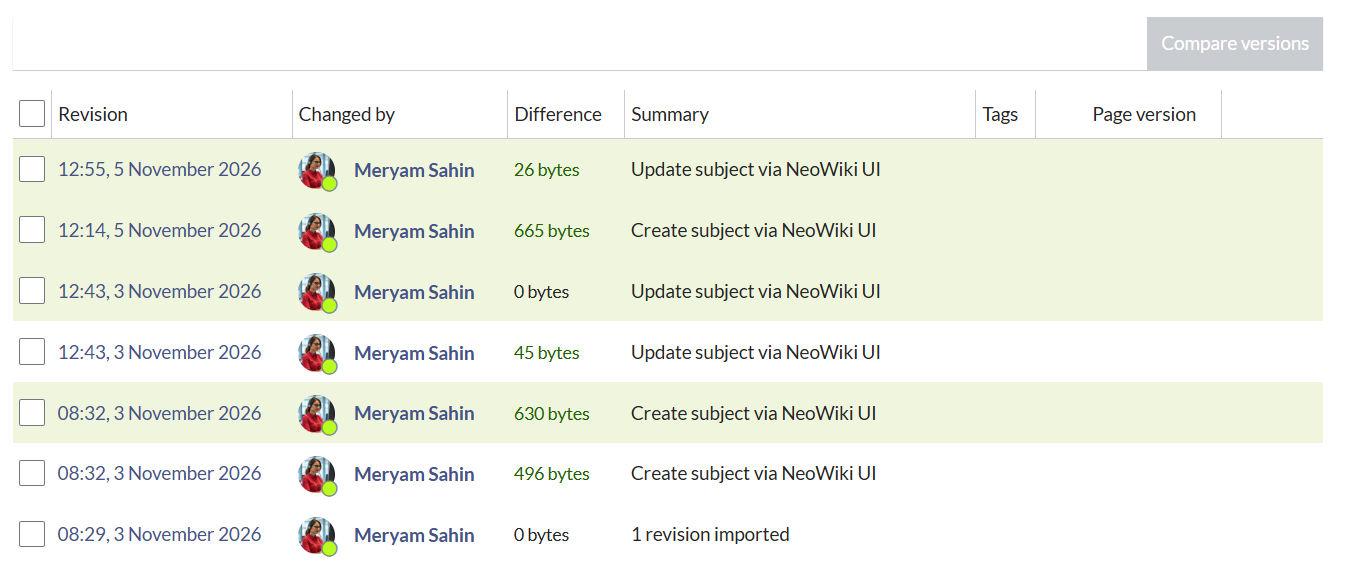
If a page is edited and saved multiple times in draft mode, each edit is listed in the version history. The Status column shows which revision is a draft and which is approved. Additionally, approved versions are highlighted in color. | |||
[[File:Extension_ContentStabilization_version_history.png|alt=Revision history of a pag with 4 approved versions and some draft versions in between|center|thumb|650x650px|Approved versions]] | |||
== Approving a page == | |||
A user with [[Extension/BlueSpicePermissionManager|reviewer permissions]] can approve the page from the status message in the title area of the page. The approval comment is logged in the page's version history. The new approval status is then shown in the title area. | |||
Revision as of 16:22, 10 November 2026
The ContentStabilization extension activates an approval mechanism for namespaces. New versions of a page are initially marked as drafts. Users with approval rights can then review and approve the page.
Activating page approval
Drafts are activated via the namespace settings (admin rights are required). In the Wiki actions menu, select Namespaces. Choose the namespace that should work with approvals. Make sure that the Approvals setting is activated.
Existing Pages
After Approval is activated for a namespace, all existing pages in the namespace appear in First draft mode.

By default, the page status is displayed in the title area of every page with approval function .
Alternatively, the status info can be moved below the page content with a skin setting for BlueSpiceDiscovery in the Configuration manager.
First drafts
When a new page is created and saved for the first time, its status is First draft until the page gets approved. By default, first drafts are visible to all users with read permissions. However, this can be restricted to individual user groups in the settings of the Configuration manager.
Drafts
If a page is edited and saved multiple times in draft mode, each edit is listed in the version history. The Status column shows which revision is a draft and which is approved. Additionally, approved versions are highlighted in color.

Approving a page
A user with reviewer permissions can approve the page from the status message in the title area of the page. The approval comment is logged in the page's version history. The new approval status is then shown in the title area.