No edit summary |
No edit summary |
||
| Line 1: | Line 1: | ||
{{Textbox|boxtype=note|header=Central user directory: the standard setup|text=In most installations, user accounts and group memberships come from a central directory service, such as Active Directory, LDAP, or a single sign-on provider using OIDC or SAML. This is the standard setup for Sky, Sapphire, and Indigo installations. In that setup, the '''User manager''' only displays users and groups. You do not create accounts or assign groups here. See [[PLACEHOLDER|Access management with a central user directory]]. | |||
This page describes '''manual user management'''. It applies only if your wiki is not connected to a central directory, for example in an Glacier version.|icon=yes}} | |||
== About the User manager == | == About the User manager == | ||
The user manager allows administrators to manage user accounts and user groups. It is the first step in giving someone access to a wiki: you create the account and the groups here, and then you give them a role in each subwiki where they should work. See [[#How the User manager and Access manager work together|below]] for how the two fit together. | The user manager allows administrators of the '''Main wiki''' to manage user accounts and user groups. It is the first step in giving someone access to a wiki: you create the account and the groups here, and then you give them a role in each subwiki where they should work. See [[#How the User manager and Access manager work together|below]] for how the two fit together. | ||
{{Step select menu|menu=Wiki actions|link=Users}} to access the special page '''User manager'''. | {{Step select menu|menu=Wiki actions|link=Users}} to access the special page '''User manager'''. | ||
{{Textbox|boxtype=important|header=Global user management|text=Users and groups are always managed in the '''Main''' wiki, for all subwikis together. The link '''Users''' in the '''Wiki actions''' menu of each subwiki leads to the '''User manager''' of the | {{Textbox|boxtype=important|header=Global user management|text=Users and groups are always managed in the '''Main''' wiki, for all subwikis together. The link '''Users''' in the '''Wiki actions''' menu of each subwiki leads to the '''User manager''' of the main wiki. Subwiki adminis cannot.|icon=yes}} | ||
== How the User manager and Access manager work together == | == How the User manager and Access manager work together == | ||
| Line 29: | Line 32: | ||
# Assign a role (Reader, Editor, Reviewer or Admin) to the user or, preferably, to the user's group. | # Assign a role (Reader, Editor, Reviewer or Admin) to the user or, preferably, to the user's group. | ||
Access is not controlled by namespaces. Namespaces only describe the type of a page, see [[Extension/BlueSpiceDistributionConnector/Namespace manager|Namespace concept]]. | Access is not controlled by namespaces, and there are no global groups that grant access to all subwikis at once. Namespaces only describe the type of a page, see [[Extension/BlueSpiceDistributionConnector/Namespace manager|Namespace concept]]. | ||
{{MoreInfo|page=Extension/BlueSpiceWikiFarm/Access_management|label=Access management}} | {{MoreInfo|page=Extension/BlueSpiceWikiFarm/Access_management|label=Access management}} | ||
Revision as of 11:44, 19 November 2026
GlacierSkySapphire
Central user directory: the standard setupIn most installations, user accounts and group memberships come from a central directory service, such as Active Directory, LDAP, or a single sign-on provider using OIDC or SAML. This is the standard setup for Sky, Sapphire, and Indigo installations. In that setup, the User manager only displays users and groups. You do not create accounts or assign groups here. See Access management with a central user directory.
This page describes manual user management. It applies only if your wiki is not connected to a central directory, for example in an Glacier version.
About the User manager
The user manager allows administrators of the Main wiki to manage user accounts and user groups. It is the first step in giving someone access to a wiki: you create the account and the groups here, and then you give them a role in each subwiki where they should work. See below for how the two fit together.
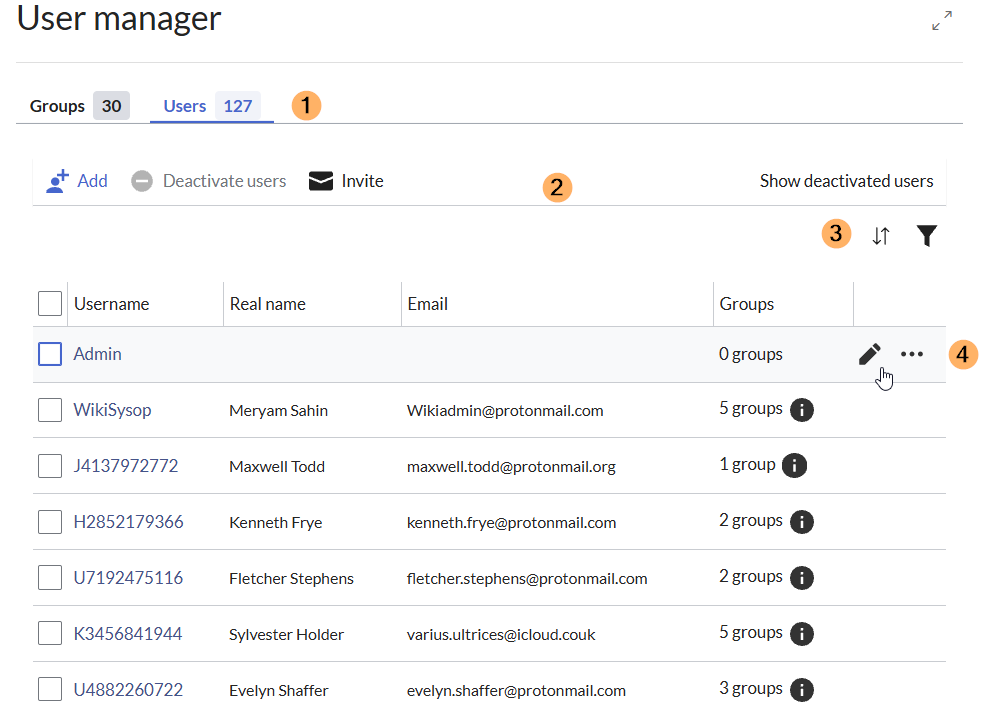
In the Wiki actions menu, select Users to access the special page User manager.
Global user managementUsers and groups are always managed in the Main wiki, for all subwikis together. The link Users in the Wiki actions menu of each subwiki leads to the User manager of the main wiki. Subwiki adminis cannot.
How the User manager and Access manager work together
Access in BlueSpice Galaxy has two parts, and each part has its own tool:
| Question | Answer | Tool |
|---|---|---|
| Who exists on this wiki, and which groups are they in? | Once, in the Main wiki, for all subwikis | User manager (this page) |
| What may a user or group do in a specific subwiki? | Separately in each subwiki | Access manager |
To give a new colleague access to a subwiki:
- In the User manager, create the user account, ideally with a group assignment.
- Switch to the subwiki and open the Access manager from the Wiki actions menu.
- Assign a role (Reader, Editor, Reviewer or Admin) to the user or, preferably, to the user's group.
Access is not controlled by namespaces, and there are no global groups that grant access to all subwikis at once. Namespaces only describe the type of a page, see Namespace concept.
For more info, see the Access management help page.
Structure
The User manager contains four functional areas:

| Area | Name | Functionality |
|---|---|---|
| 1 | Groups / Users tabs | Shows the number of existing groups and users. Switch between the tabs to manage users or groups. |
| 2 | User actions |
|
| 3 | Sorting and filtering actions |
|
| 4 | User row | When a user row receives focus, you can edit the properties and the password for the highlighted user account.
|