No edit summary |
No edit summary |
||
| Line 29: | Line 29: | ||
# Assign a role (Reader, Editor, Reviewer or Admin) to the user or, preferably, to the user's group. | # Assign a role (Reader, Editor, Reviewer or Admin) to the user or, preferably, to the user's group. | ||
Access is not controlled by namespaces. Namespaces only describe the type of a page, see [[ | Access is not controlled by namespaces. Namespaces only describe the type of a page, see [[Extension/BlueSpiceDistributionConnector/Namespace manager|Namespace concept]]. | ||
{{ | {{MoreInfo|page=Extension/BlueSpiceWikiFarm/Access_management|label=Access management}} | ||
== Structure == | == Structure == | ||
Revision as of 09:46, 29 October 2026
About the User manager
The user manager allows administrators to manage user accounts and user groups. It is the first step in giving someone access to a wiki: you create the account and the groups here, and then you give them a role in each subwiki where they should work. See below for how the two fit together.
In the Wiki actions menu, select Users to access the special page User manager.
How the User manager and Access manager work together
Access in BlueSpice Galaxy has two parts, and each part has its own tool:
| Question | Where you answer it | Tool |
|---|---|---|
| Who exists on this wiki, and which groups are they in? | Once, in the root wiki, for all subwikis | User manager (this page) |
| What may a user or group do in a specific subwiki? | Separately in each subwiki | Access manager |
To give a new colleague access to a subwiki:
- In the User manager, create the user account, ideally with a group assignment.
- Switch to the subwiki and open the Access manager from the Wiki actions menu.
- Assign a role (Reader, Editor, Reviewer or Admin) to the user or, preferably, to the user's group.
Access is not controlled by namespaces. Namespaces only describe the type of a page, see Namespace concept.
Structure
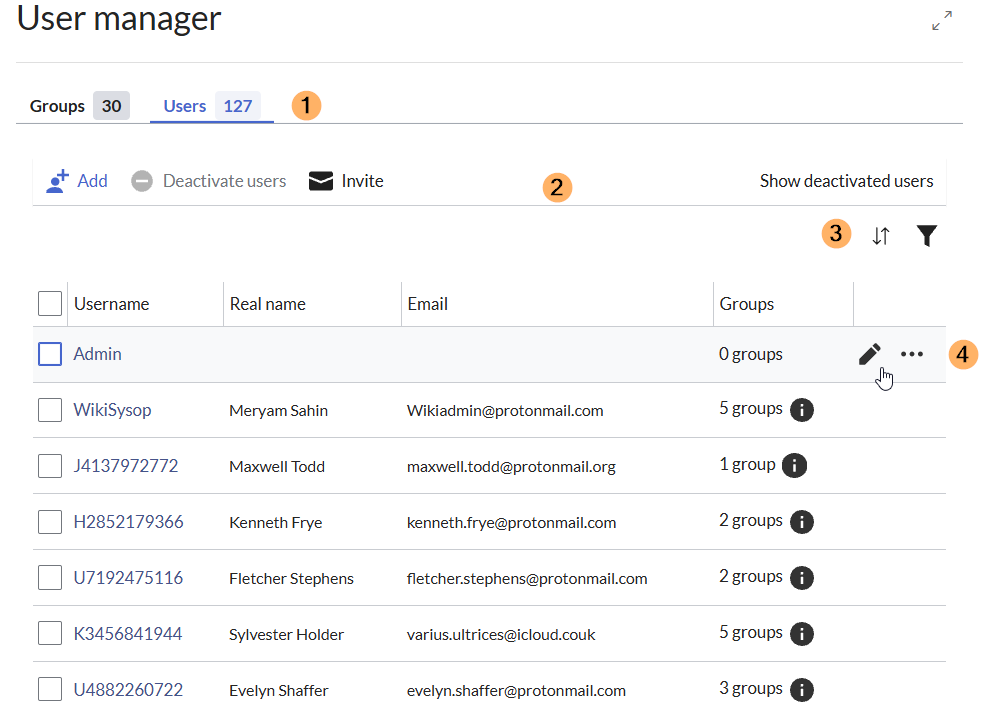
The User manager contains four functional areas:

| Area | Name | Functionality |
|---|---|---|
| 1 | Groups / Users tabs | Shows the number of existing groups and users. Switch between the tabs to manage users or groups. |
| 2 | User actions |
|
| 3 | Sorting and filtering actions |
|
| 4 | User row | When a user row receives focus, you can edit the properties and the password for the highlighted user account.
|
What I changed in your text:
Step select menu: the menu name was “Wiki action” and is now “Wiki actions”, as on the Access manager page. Textbox header: I removed the trailing colons, because headers usually don’t need them. Add user, Invite and Deactivate entries: these were bolded inconsistently, so I made all list entries bold and tightened the wording. Column widths: I removed the width style from each cell and kept it only in the header, since the column width is set there.
Please check:
“Main wiki” or “root wiki”: your draft says “Main wiki”, but earlier you called it the “root wiki”, and I used that in the diagram and on the Access manager page. “Main wiki” is also easily confused with the Main namespace. I would pick one term and use it on all three pages. Invite entry: the sentence “users need to have edit permissions in the Main wiki” is unclear to me. I kept your meaning, but if you tell me who needs the permissions (the invited user or the admin), I’ll make it precise. Namespaces link: Namespace concept is a placeholder; replace it with the real page name. More info template: I assumed the template name Template:More info from our earlier discussion. Adjust it if you named it differently.