No edit summary |
m Text replacement - "Reference:" to "Reference/" |
||
| (15 intermediate revisions by one other user not shown) | |||
| Line 1: | Line 1: | ||
'''VisualEditor''' is a visual editing tool for wiki pages. It allows page content to be edited without using wikitext. BlueSpice uses a customized version of the MediaWiki [[mediawikiwiki:Help/User_guide|VisualEditor]] extension. With VisualEditor, editors can format text, structure page content, insert links and media, and add other content to wiki pages. | '''VisualEditor''' is a visual editing tool for wiki pages. It allows page content to be edited without using wikitext. BlueSpice uses a customized version of the MediaWiki [[mediawikiwiki:Help/User_guide|VisualEditor]] extension. With VisualEditor, editors can format text, structure page content, insert links and media, and add other content to wiki pages. | ||
==VisualEditor overview== | ==VisualEditor overview== | ||
| Line 6: | Line 5: | ||
#'''Undo and redo changes''': Undo and redo your most recent changes. | #'''Undo and redo changes''': Undo and redo your most recent changes. | ||
#'''Page structure''': Apply heading levels to structure the page. | #'''Page structure''': Apply heading levels to structure the page. | ||
#'''Text formatting''': Format text using options such as bold, italic, superscript, subscript, or text color. | #'''[[#Text_formatting|Text formatting]]''': Format text using options such as bold, italic, superscript, subscript, or text color. | ||
#'''[[Extension/VisualEditor/Insert_links|Links]]''': Add links to wiki pages or external websites. | #'''[[Extension/VisualEditor/Insert_links|Links]]''': Add links to wiki pages or external websites. | ||
#'''Lists''': Create numbered lists, bulleted lists, or task lists. | #'''Lists''': Create numbered lists, bulleted lists, or task lists. | ||
#'''Insert''': Insert images, files, tables, templates, comments, galleries, formulas, status badges, and other special content. | #'''[[#Insert_special_content|Insert]]''': Insert images, files, tables, templates, comments, galleries, formulas, status badges, and other special content. | ||
#'''Page layouts''': Add a predefined layout to structure page content. | #'''[[#Page_layouts|Page layouts]]''': Add a predefined layout to structure page content. | ||
#'''Special characters''': Insert characters that are not available on your keyboard. | #'''[[#Special_characters|Special characters]]''': Insert characters that are not available on your keyboard. | ||
#'''[[Extension/AtMentions|Mentions]]''': Mention other users on a wiki page. | #'''[[Extension/AtMentions|Mentions]]''': Mention other users on a wiki page. | ||
#'''[[Extension/ContentDroplets|Content droplets]]''': Insert predefined content elements. | #'''[[Extension/ContentDroplets|Content droplets]]''': Insert predefined content elements. | ||
#'''Page options''': Change page settings and access additional page information. | #'''[[#Page_options|Page options]]''': Change page settings and access additional page information. | ||
#'''Switch between edit modes''': Switch between visual editing and source editing. | #'''Switch between edit modes''': Switch between visual editing and source editing. | ||
#'''Save the page''': Save your changes and add an optional summary to the version history. You can also mark the edit as minor. | #'''Save the page''': Save your changes and add an optional summary to the version history. You can also mark the edit as minor. | ||
| Line 22: | Line 21: | ||
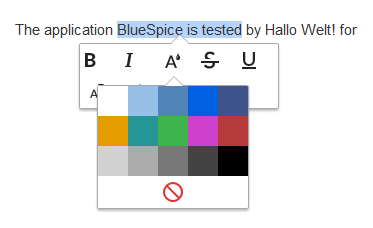
[[File:visualeditor-text-color.png|center|thumb|Applying text color|alt=Text formatting inspector showing color choices]] | [[File:visualeditor-text-color.png|center|thumb|Applying text color|alt=Text formatting inspector showing color choices]] | ||
===Switching between edit modes=== | ===Switching between edit modes=== | ||
When creating or editing a page, VisualEditor opens by default. Pages can be edited in source editing mode using | When creating or editing a page, VisualEditor opens by default. Pages can be edited in source editing mode using '''Switch editor'''. Source editing mode allows editing the page directly using [[Wikitext]] syntax. [[File:wikitext-edit-modes.png|alt=Open menu actions for switching between edit modes|center|thumb|250x250px|Edit modes]]{{Textbox|boxtype=note|header=Note|text=Unsaved changes cannot be restored using the ‘Undo’ button after switching between visual and source text editing!|icon=yes}} | ||
== Menu == | == Menu == | ||
The Editor menus provide tools for formatting and structuring wiki pages and for inserting additional content. | The Editor menus provide tools for formatting and structuring wiki pages and for inserting additional content. | ||
| Line 72: | Line 71: | ||
|- | |- | ||
| style="" |'''Structure''' | | style="" |'''Structure''' | ||
[[File:visualeditor-structure | [[File:visualeditor-structure.png]] | ||
| style="" |The '''Structure''' menu provides options for creating: | | style="" |The '''Structure''' menu provides options for creating: | ||
*'''unordered lists''' | *'''unordered lists''' | ||
| Line 80: | Line 79: | ||
|} | |} | ||
===Insert special content=== | ===Insert special content=== | ||
Use the '''Insert''' (+) menu to add media, templates, tables, references, and other special content to a page. | Use the '''Insert''' (+) menu to add media, templates, tables, references, and other special content to a page. <br> | ||
[[File:visualeditor-insert-menu.png | [[File:visualeditor-insert-menu.png|center]] | ||
{| class="wikitable" style="" | {| class="wikitable" style="" | ||
|- | |- | ||
| Line 120: | Line 119: | ||
| style="" |Display content from other wiki pages in tabs. | | style="" |Display content from other wiki pages in tabs. | ||
|- | |- | ||
| style="" |Your signature | | style="" |'''Your signature''' | ||
| style="" |Insert the current user's signature, including the user name and timestamp. | | style="" |Insert the current user's signature, including the user name and timestamp. | ||
|- | |- | ||
| Line 149: | Line 148: | ||
For more information, see the [https://www.mediawiki.org/wiki/Help:VisualEditor/User_guide#Editing_images_and_other_media_files VisualEditor user guide]. | For more information, see the [https://www.mediawiki.org/wiki/Help:VisualEditor/User_guide#Editing_images_and_other_media_files VisualEditor user guide]. | ||
=== Page layouts === | === Page layouts === | ||
Arrange page content in columns. Select the number of columns and, optionally, a narrow first or last column. Several layout styles are available, including no styling, card, and divider. | Arrange page content in columns. Select the number of columns and, optionally, a narrow first or last column. Several layout styles are available, including no styling, card, and divider. <br> | ||
[[File:visualeditor-page-layouts.png|center]] | |||
=== Special characters === | === Special characters === | ||
Select special characters that are not available on the keyboard. To close the panel, select the '''Special characters''' button again. | Select special characters that are not available on the keyboard. To close the panel, select the '''Special characters''' button again. <br> | ||
[[File:visualeditor-special-characters.png | [[File:visualeditor-special-characters.png|center]] | ||
=== Page options === | === Page options === | ||
The '''Options''' menu in the VisualEditor provides additional editing functions. | The '''Options''' menu in the VisualEditor provides additional editing functions. | ||
[[File:visualeditor-options.png| | [[File:visualeditor-options.png|center]] | ||
{| class="wikitable" style="" | {| class="wikitable" style="" | ||
|- | |- | ||
! Function | ! Function | ||
! Description | ! Description | ||
|- | |- | ||
| style="" |'''Options''' | | style="" |'''Options''' | ||
| Line 174: | Line 170: | ||
|- | |- | ||
| style="" |'''Page settings''' | | style="" |'''Page settings''' | ||
[[File:visualeditor-page-settings.png]] | [[File:visualeditor-options-page-settings.png]] | ||
| style="" | | | style="" | | ||
* '''Page redirection''': Redirect the page to another wiki page. | * '''Page redirection''': Redirect the page to another wiki page. | ||
| Line 180: | Line 176: | ||
|- | |- | ||
| style="" |'''Advanced settings''' | | style="" |'''Advanced settings''' | ||
[[File:visualeditor-advanced-settings.png]] | [[File:visualeditor-options-advanced-settings.png]] | ||
| style="" | | | style="" | | ||
*'''Let this page be indexed by search engines''': Allow or prevent indexing by public search engines. This setting does not affect the wiki's internal search. | *'''Let this page be indexed by search engines''': Allow or prevent indexing by public search engines. This setting does not affect the wiki's internal search. | ||
| Line 190: | Line 186: | ||
|- | |- | ||
| style="" |'''Languages''' | | style="" |'''Languages''' | ||
[[File:visualeditor-languages.png]] | [[File:visualeditor-options-languages.png]] | ||
| style="" |Access interlanguage links to wiki pages in other connected wikis. Depending on the skin, these links are displayed in different locations. | | style="" |Access interlanguage links to wiki pages in other connected wikis. Depending on the skin, these links are displayed in different locations. | ||
|- | |- | ||
| style="" |'''Templates used''' | | style="" |'''Templates used''' | ||
[[File:visualeditor-templates-used.png]] | [[File:visualeditor-options-templates-used.png]] | ||
| style="" |View the templates embedded in the page. | | style="" |View the templates embedded in the page. | ||
|- | |||
| style="vertical-align:middle;text-align:left;" |'''Lock page''' | |||
[[File:visualeditor-options-lock-page.png]] | |||
| style="" |Lock the page from editing to prevent changes to its content. To lock a page, '''Page locking''' must be activated in the '''Namespace manager'''. | |||
|- | |- | ||
| style="" |'''Syntax highlighting''' | | style="" |'''Syntax highlighting''' | ||
| style="" |Display source code with syntax highlighting using the [[Reference/CodeMirror|CodeMirror]] extension. | |||
| style="" |Display source code with syntax highlighting using the [[Reference | |- | ||
|'''Edit main metadata entry''' | |||
|Open metadata for this page and mage changes to it. | |||
|- | |- | ||
| style="" |'''View as right-to-left''' | | style="" |'''View as right-to-left''' | ||
[[File:visualeditor-right-to-left.png]] | [[File:visualeditor-options-right-to-left.png]] | ||
| style="" |Display the page text from right to left. Select the option again to return to left-to-right text direction. | | style="" |Display the page text from right to left. Select the option again to return to left-to-right text direction. | ||
|- | |- | ||
| style="" |'''Find and replace''' | | style="" |'''Find and replace''' | ||
[[File:visualeditor-find-and-replace.png]] | [[File:visualeditor-options-find-and-replace.png]] | ||
| style="" |Search for and replace words or characters in the page. | | style="" |Search for and replace words or characters in the page. | ||
|- | |- | ||
| style="" |'''Leave feedback about this software''' | | style="" |'''Leave feedback about this software''' | ||
| style="" |Open a form to submit feedback about the software. | | style="" |Open a form to submit feedback about the software. | ||
|- | |- | ||
| style="" |'''Keyboard | | style="" |'''Keyboard shortcuts''' | ||
[[File:visualeditor-keyboard-shortcuts.png]] | [[File:visualeditor-options-keyboard-shortcuts.png]] | ||
| style="" |View the available VisualEditor keyboard shortcuts. | | style="" |View the available VisualEditor keyboard shortcuts. | ||
|- | |- | ||
| style="" |'''Toolbar search''' | | style="" |'''Toolbar search''' | ||
| style="" |Search for functions and tools available in VisualEditor. | | style="" |Search for functions and tools available in VisualEditor. | ||
|- | |- | ||
| style="" |'''Read the user guide''' | | style="" |'''Read the user guide''' | ||
| style="" |Link to the helpdesk. | | style="" |Link to the helpdesk. | ||
|} | |} | ||
Latest revision as of 11:17, 13 November 2026
VisualEditor is a visual editing tool for wiki pages. It allows page content to be edited without using wikitext. BlueSpice uses a customized version of the MediaWiki VisualEditor extension. With VisualEditor, editors can format text, structure page content, insert links and media, and add other content to wiki pages.
VisualEditor overview

The VisualEditor is optimized for editing wiki pages. Important characteristics and functions are:
- Close page without saving: Close the editor without saving your changes. A confirmation dialog allows you to cancel or discard the changes.
- Undo and redo changes: Undo and redo your most recent changes.
- Page structure: Apply heading levels to structure the page.
- Text formatting: Format text using options such as bold, italic, superscript, subscript, or text color.
- Links: Add links to wiki pages or external websites.
- Lists: Create numbered lists, bulleted lists, or task lists.
- Insert: Insert images, files, tables, templates, comments, galleries, formulas, status badges, and other special content.
- Page layouts: Add a predefined layout to structure page content.
- Special characters: Insert characters that are not available on your keyboard.
- Mentions: Mention other users on a wiki page.
- Content droplets: Insert predefined content elements.
- Page options: Change page settings and access additional page information.
- Switch between edit modes: Switch between visual editing and source editing.
- Save the page: Save your changes and add an optional summary to the version history. You can also mark the edit as minor.
Text editing

When text is selected in VisualEditor, a context menu appears with options for formatting the selected text and adding links. Available formatting options include bold, italic, and text color. The context menu also provides access to the AI editing assistant.

Switching between edit modes
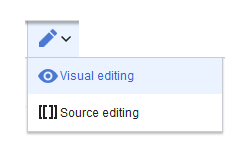
When creating or editing a page, VisualEditor opens by default. Pages can be edited in source editing mode using Switch editor. Source editing mode allows editing the page directly using Wikitext syntax.

Menu
The Editor menus provide tools for formatting and structuring wiki pages and for inserting additional content.
Text formatting
The text formatting tools are available in the VisualEditor toolbar.
| Function | Description |
|---|---|
| Undo and redo
|
Use the Undo arrow to undo the last action. Use the Redo arrow to restore an undone action. The arrows are unavailable when there is no action to undo or redo. |
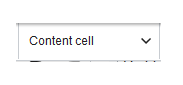
| Format paragraph
|
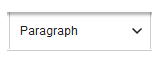
The Format paragraph menu provides options for applying heading levels and paragraph styles to the current paragraph. If a page contains more than three headings, VisualEditor automatically displays a table of contents.  |
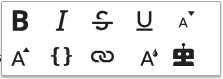
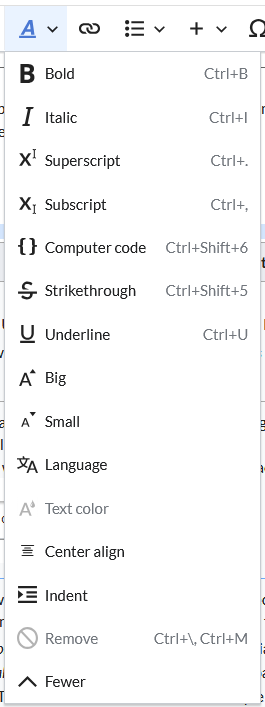
| Style text
|

If no text is selected, the formatting is applied at the current cursor position. |
| Insert link
|
The Insert link option provides the following link types:
To edit an existing link, select the link to open the link options. When editing a link in a table cell, double-click the cell first, then select the link. |
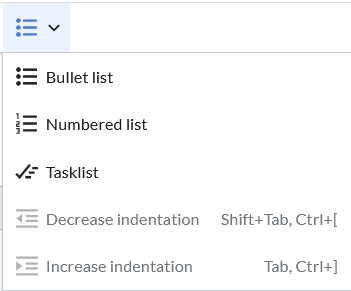
| Structure
|
The Structure menu provides options for creating:
Shift+Enter. This keeps the content in the same list item. To create numbered lists with multiple levels, such as 1, 1.1, and 1.1.1, additional CSS must be added to MediaWiki:Common.css. See numbering ordered lists for more information.  |


Insert special content
Use the Insert (+) menu to add media, templates, tables, references, and other special content to a page.

| Function | Description |
|---|---|
| Images and media | Insert images, files, Office documents, and videos. See Insert images and Insert files. JPG/JPEG, PNG, GIF, and PDF files can be displayed with a preview. File formats without preview support, such as Microsoft Office files, are inserted as links. |
| Template | Insert a template into the page. |
| Table | Insert and edit tables. |
| Comment | Insert a comment that is visible only in edit mode. Comments can be added anywhere on the page and cannot be formatted. |
| Exclude from translation | Exclude selected content from the translation process when TranslationTransfer is enabled. Adds the tag set <translation:ignore>text</translation:ignore>
|
| Inline excerpt | |
| Code block | Insert formatted code examples. Code blocks preserve the formatting of the code and can be copied to the clipboard. |
| Exclude content in PDF | Exclude selected content from PDF output. |
| Gallery | Display multiple images as a gallery. |
| Tabber | Display content in tabs. |
| Tabber (transclusion) | Display content from other wiki pages in tabs. |
| Your signature | Insert the current user's signature, including the user name and timestamp. |
| Chemical formula | Insert and display a chemical formula. |
| Math formula | Insert and display a mathematical formula. |
| Status badge | Insert a status badge into the page. |
| References list | Insert a <references /> tag at the selected location. References up to this point are displayed there instead of at the end of the page. Remaining references are still displayed at the end of the page. |
| Soft hyphen | Insert a soft hyphen into a long word. The hyphen is displayed only when the word needs to wrap at the end of a line. |
| Line break | Insert an explicit line break. |
| Basic reference | Create a footnote reference. |
| Re-use reference | Re-use an existing footnote reference at another location on the page. |
For more information, see the VisualEditor user guide.
Page layouts
Arrange page content in columns. Select the number of columns and, optionally, a narrow first or last column. Several layout styles are available, including no styling, card, and divider.

Special characters
Select special characters that are not available on the keyboard. To close the panel, select the Special characters button again.

Page options
The Options menu in the VisualEditor provides additional editing functions.

| Function | Description |
|---|---|
| Options
|
Open the page options dialog to view and change available page settings. |
| Categories
|
Assign the page to one or more. The page then appears on the corresponding category pages. |
| Page settings
|
|
| Advanced settings
|
|
| Languages
|
Access interlanguage links to wiki pages in other connected wikis. Depending on the skin, these links are displayed in different locations. |
| Templates used
|
View the templates embedded in the page. |
| Lock page
|
Lock the page from editing to prevent changes to its content. To lock a page, Page locking must be activated in the Namespace manager. |
| Syntax highlighting | Display source code with syntax highlighting using the CodeMirror extension. |
| Edit main metadata entry | Open metadata for this page and mage changes to it. |
| View as right-to-left
|
Display the page text from right to left. Select the option again to return to left-to-right text direction. |
| Find and replace
|
Search for and replace words or characters in the page. |
| Leave feedback about this software | Open a form to submit feedback about the software. |
| Keyboard shortcuts
|
View the available VisualEditor keyboard shortcuts. |
| Toolbar search | Search for functions and tools available in VisualEditor. |
| Read the user guide | Link to the helpdesk. |


Tips
Pasting content from your clipboard

When pasting content copied from applications such as Microsoft Word or Microsoft Excel, unnecessary formatting can be transferred with the content. To avoid this, paste the content as plain text.
If the pasted content contains unwanted formatting, use Undo in VisualEditor to remove it. This is only possible if the page has not been saved and the editing mode has not been switched between visual and source editing.
To paste content as plain text, use Ctrl+Shift+V.
Keyboard shortcuts
Keyboard shortcuts can speed up frequently used editing tasks. For example:
Ctrl+B: Apply or remove bold formatting.Ctrl+I: Apply or remove italic formatting.Ctrl+K: Insert a link.Ctrl+M: Remove formatting from selected text.
Available keyboard shortcuts are displayed next to the corresponding functions in VisualEditor. To view the complete list, select Keyboard shortcuts in the Options menu.