No edit summary |
No edit summary |
||
| (2 intermediate revisions by 2 users not shown) | |||
| Line 37: | Line 37: | ||
</syntaxhighlight> | </syntaxhighlight> | ||
=== BlueSpiceAvatars === | === BlueSpiceAvatars === | ||
An avatar image is automatically generated if the user does not upload a profile picture or if the user decides to create an avatar image in the preferences. | <excerpt-block name="BlueSpiceAvatars" hidden="false">An avatar image is automatically generated if the user does not upload a profile picture or if the user decides to create an avatar image in the preferences. | ||
*'''Generator''' | *'''Generator''' | ||
**'''InstantAvatar:''' Generates an avatar image based on using the initials of the Real name or the Username<br />[[File:Manual-configmanager-instantavatar.png|thumb|500x500px|InstantAvatar|link=Special:FilePath/Manual:configmanager-instantavatar.png|alt=Profile infobox with round avatar image with the letters HM|center]] | **'''InstantAvatar:''' Generates an avatar image based on using the initials of the Real name or the Username<br />[[File:Manual-configmanager-instantavatar.png|thumb|500x500px|InstantAvatar|link=Special:FilePath/Manual:configmanager-instantavatar.png|alt=Profile infobox with round avatar image with the letters HM|center]] | ||
**'''[[wikipedia:Identicon|Identicon:]]''' Generates an avatar image based on parts of the user's IP address.<br />[[File:Manual-configmanager-identicon.png|alt=Identicon made of a blue and white windmill pattern|center|thumb|500x500px|Identicon]] | **'''[[wikipedia:Identicon|Identicon:]]''' Generates an avatar image based on parts of the user's IP address.<br />[[File:Manual-configmanager-identicon.png|alt=Identicon made of a blue and white windmill pattern|center|thumb|500x500px|Identicon]] | ||
</excerpt-block> | |||
===BlueSpiceBookshelf === | ===BlueSpiceBookshelf === | ||
Latest revision as of 08:39, 23 November 2026
The Config manager page enables administrators to configure Galaxy and its extensions through a dedicated administrative interface, removing the need for manual changes to the server-side configuration.
Where to find the Config manager
In the Wiki actions menu, select Configuration. This opens the page Special:BlueSpiceConfigManager.
Layout
Filter options
All settings can be accessed through the following filter options:
- Feature: group by type of functionality the setting belongs to (search, administration...)
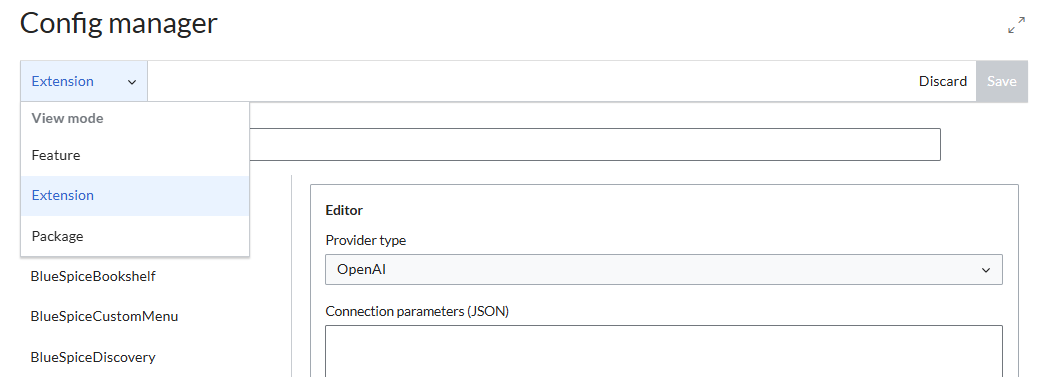
- Extension: group by extension name
- Package: group by BlueSpice edition and services (BlueSpice free, BlueSpice pro, Matomo)

All settings are available in any type of grouping. Changing the grouping type does not add or remove setting options. It just groups them differently. After settings are adjusted, they can be saved by clickingSave, or cancelled by clicking Reset.
Searching for settings
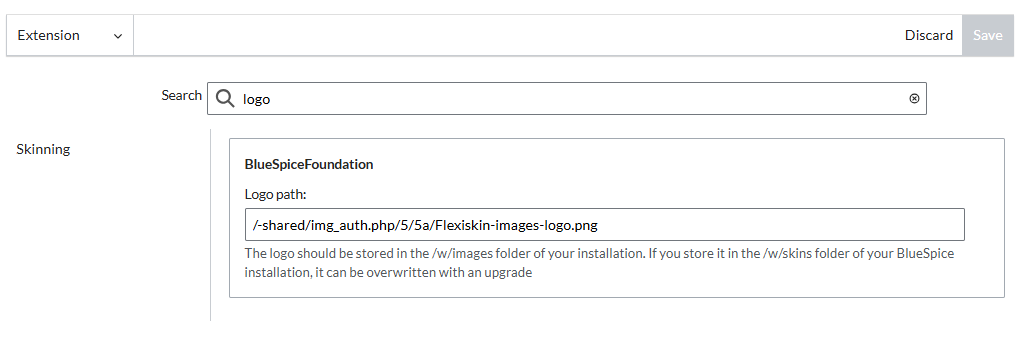
A search bar is located above the list of settings. Type in a keyword such as "logo" to find the corresponding setting. The search returns settings regardless of the currently selected group.

Settings by extension
AI Editing Assistant
- Provider type: One of the supported providers is selected here (OpenAI or Ollama). OpenAI requires its own account, which provides an API key. To remove the AI Editing assistant icon from the Visual editor text formatting context menu, set the provider type to None.
- Connection params: The API key of the provider is entered here (OpenAI) or the endpoint URL (Ollama).
A specific AI model can be configures in the connection params field:
{
    "url": "https://api.openai.com/v1",
    "endpoint": "chat/completions",
    "secret": "<key>",
    "model": "gpt-3.5-turbo"
}
BlueSpiceAvatars
- Generator
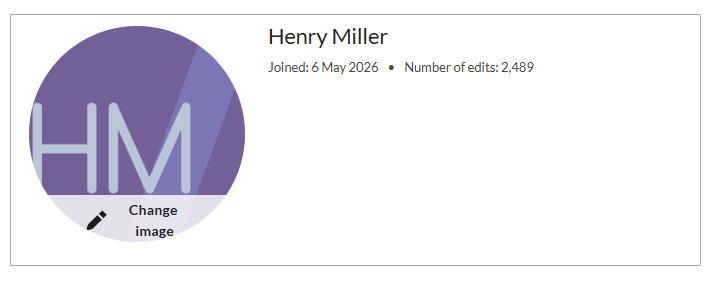
- InstantAvatar: Generates an avatar image based on using the initials of the Real name or the Username
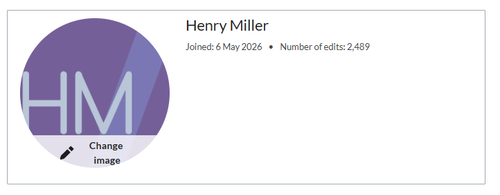
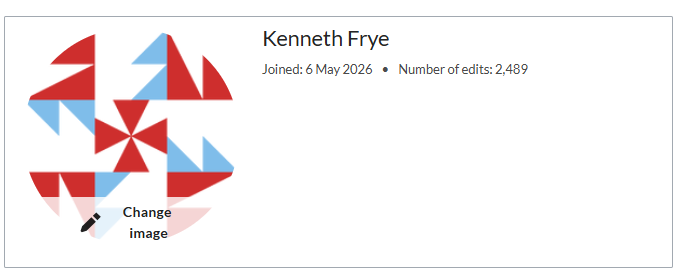
InstantAvatar - Identicon: Generates an avatar image based on parts of the user's IP address.
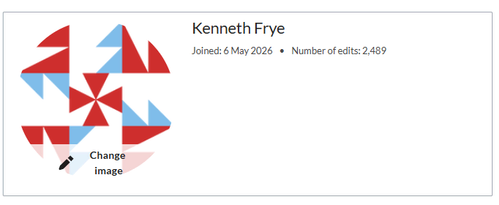
Identicon
- InstantAvatar: Generates an avatar image based on using the initials of the Real name or the Username


BlueSpiceBookshelf
Book
- Show chapter pager after content: Displays previous/next book page navigation at the end of each book page. (1)
- Show chapter pager before content: Displays previous/next book page navigation at the beginning of each book page. (2)
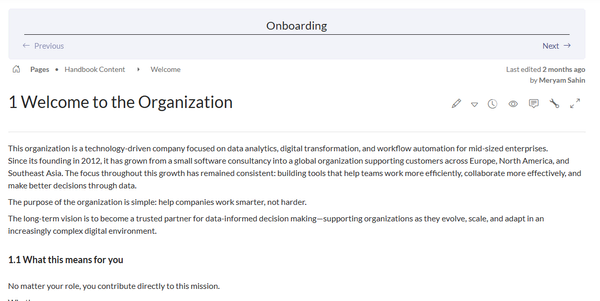
Chapter pager before content - Use display title from book source on article: Shows the title from the book navigation as page title instead of the page name.


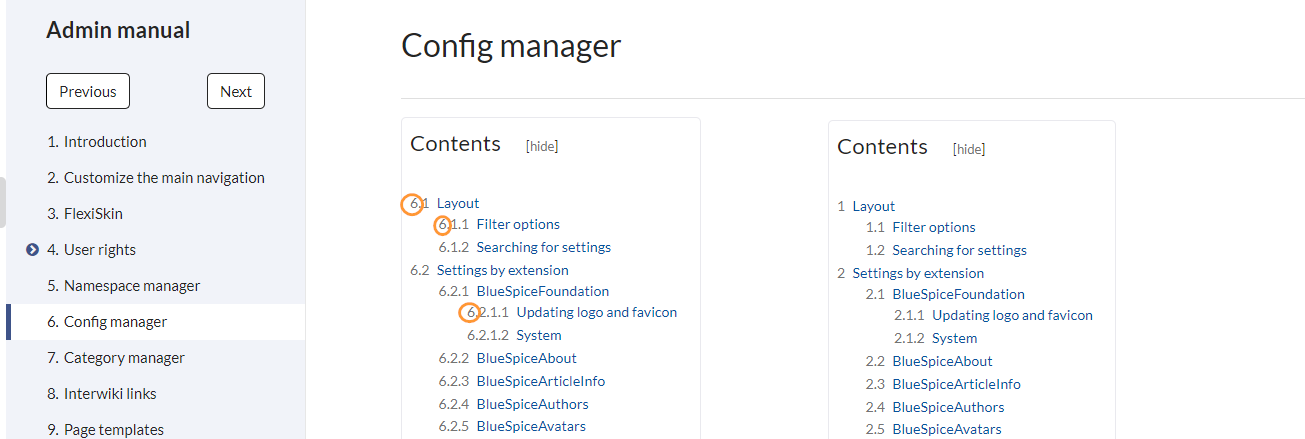
- Show book chapter numbers in table of contents and headlines: The page TOC does not start with the main heading 1, but with the actual number from the book chapter (see screenshot).

Conceptual considerations regarding numbering
If a chapter has more than one sublevel of chapters, there is a conflict between the numbering provided by the page table of contents and the chapter numbering of the book.
To technically resolve this issue, the numbering is only possible on the root chapter page and the leaf nodes of the chapter (the last sublevel). Chapter levels in between will show no numbering in the page table of contents and in the page headings. If you want to avoid this issue, create book chapters with only one level of sub-chapters.
If you want to override this logic, you can display the numbers for the page ToC by adding the following CSS to MediaWiki:Common.css:
.tocnumber.hidden {
    display:inline
}
To show the numbering for the section headings:
.mw-headline-number {
    display:none
}
.bs-chapter-number.hidden, .mw-headline-number.hidden {
    display:inline
}
Export
- Default export template for books: The default template for books is used if the export template is not explicitely set for a book export (e.g. in the book metadata).
Skinning
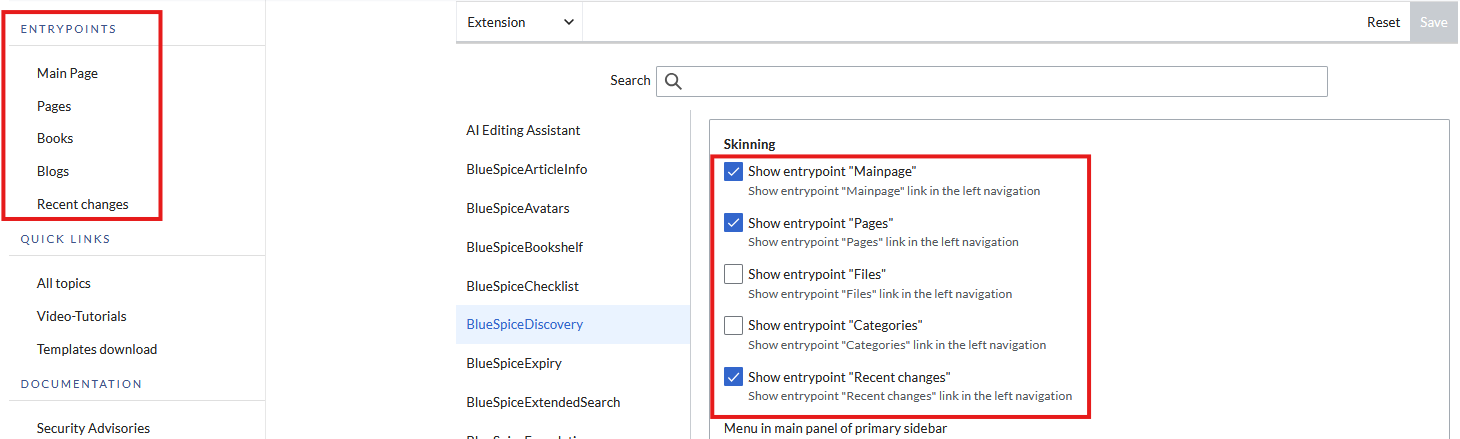
- Show entrypoint "Books": Adds a link to the page Special:Books to the main navigation entrypoints.
BlueSpiceDiscovery
- Activating/Deactivating the Entrypoint links: Depending on the BlueSpice version, various links to special pages can be activated for the main navigation. They are called entrypoint links.

- Menu in main panel of primary sidebar:
- MediaWiki sidebar: Activates the MediaWiki:Sidebar page, which can display a flat list of links.
- Namespace main page list: The pages with the page name "Main Page" for each namespace are automatically linked in the main navigation. It is not possible to add links manually to the navigation.
- Subpage tree: In the main navigation, the pages with the page name "Main Page" are automatically linked in the respective namespaces. It is not possible to add links manually to the navigation.
- Enhanced MediaWiki sidebar: Activates the MediaWiki:Sidebar.json page, which can display a more dynamic and hierarchical list of links.
- All pages: Shows the hierarchical page list of the current namespace.
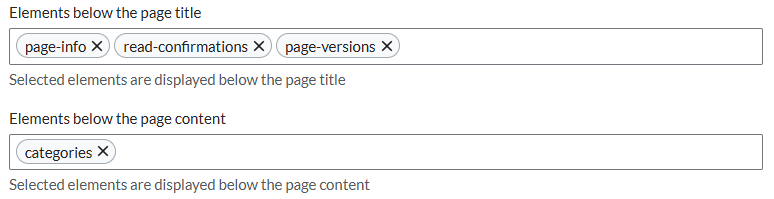
- Elements below the page title and below the page content:
- categories: display of page categories
- page-sentence: display of page status (Approval status)
- page-info
- read-confirmations: read-confirmations action menu.
- page versions: display of page version with action menu.

BlueSpiceExtendedSearch
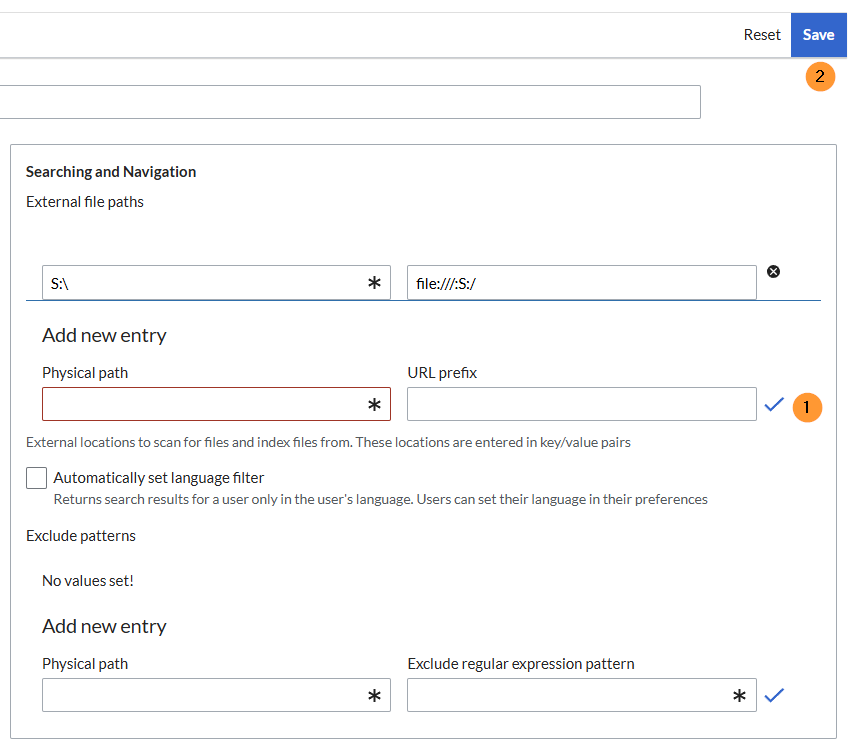
- External file paths: External locations to scan for and index files from. These locations are entered in key/value pairs of Physical path and URL prefix.
- Physical path: Storage path. For mounted drives, for example: X:\Documents
- URL prefix: All files indexed from the indexed physical location are prefixed in the search results. It should be used if files are available from a web server. By default, the URL prefix is set to the same value as Physical path.
| Example file | Phys. Path | URL Prefix | Link in results list |
|---|---|---|---|
| S:\Sales\Info\glossaryy.pdf | S:\ | file:///S:/ | file:///S:/Sales/Info/glossary.pdf |
| https://sharepoint/Sales/
documents/ |
https://sharepoint/Sales/
documents/Sales/Info/glossary.pdf | ||
| https://intranet/showdocs
inline.aspx?path= |
https://intranet/showdocsinline.aspx?
path=/Sales/Info/glossary.pdf | ||
| /var/www/bluespice/w/mounted_
share/Sales/Info/glossary.pdf |
/var/www/bluespice/w/
mounted_share/ |
https://wiki.company.local/w/mounted_
share/Sales/Info/glossary.pdf |

- Automatically set language filter: The search only returns pages whose language (PageLanguage) is identical to the user language (Language). Users can set their language in their preferences. By default, the language of content pages is the same as the installation language (ContentLanguage) of the wiki. Some extensions can set the language of individual pages independently of the content language of the wiki.. (See: https://www.mediawiki.org/wiki/Manual:Language#Page_content_language). In many wikis, activating this filter has little effect.
- Exclude patterns: Files at external file locations can be exluded from search based on regular expression patterns.
BlueSpiceFoundation
Skinning
- Logo path: The logo image should be stored in the /images folder of your installation. If you store it in the /skins folder of your BlueSpice installation, it could be overwritten with an upgrade.
To upload the logo directly in the wiki:
- Upload the logo on the page from the menu Global actions > File list (Special:ExtendedFilelist).
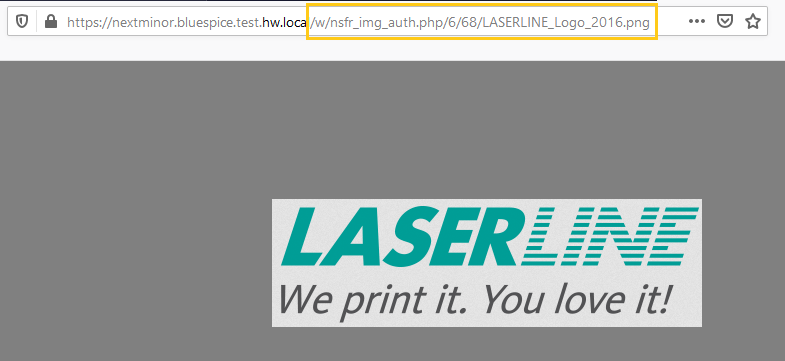
- Click on the thumbnail image of the logo. This opens an image info dialog. Right-click and copy the image path.
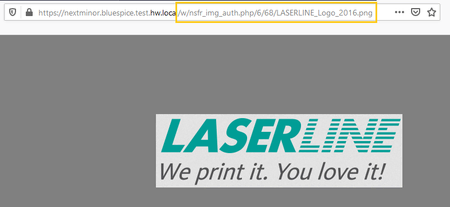
relative image path - Paste the relative logo path into the text field for the logo. In a typical Wiki configuration, this path starts with
/w/..... - Click Save.
- Refresh the page (Strg+F5).
If the uploaded logo is too large, you can add the following code snippet to the page MediaWiki:Common.css. This automatically adjusts the image to the height of the main toolbar:.bs-logo a {background-size: contain;}

- Favicon path: The favicon image should be stored in the /images folder of your installation. If you store it in the /skins folder of your BlueSpice installation, it could be overwritten with an upgrade. Favicon images have the file extension .ico.
System
- Allowed file extensions: For security reasons, the types of files that users can upload are restricted. Here, you can allow additional file formats. If a file format is blacklisted in the server configuration, adding this file extension here will not allow this file type to be uploaded. See mediawiki.org/wiki/Manual:$wgFileExtensions for more info.
$GLOBALS['wgProhibitedFileExtensions'] = array_diff( $GLOBALS['wgProhibitedFileExtensions'] ?? [], [ 'xml' ] );
$GLOBALS['wgMimeTypeExclusions'] = array_diff( $GLOBALS['wgMimeTypeExclusions'] ?? [], [ 'application/xml', 'text/xml' ] );
- Allowed image extensions: The standard web image types are listed here. In general, you want to restrict image uploads to web images. See developer.mozilla.org/en-US/docs/Web/Media/Formats/Image_types for more on browser-supported image types.
BlueSpiceGalaxyDistributionConnector
- Show entrypoint "Controlled documents": Toggle for the main navigation enrtypoint link.
BlueSpiceInsertCategory
- Set page categories as default in upload dialog: When a file is uploaded to the wiki via the visual editor, the categories of the paged are automatically inserted on the file page.
BlueSpiceMatomoConnector
If the web analysis service Matomo is available, the corresponding Site ID for the wiki and the link to Matomo (base URL, e.g., https://analytics.mysite.com/) are entered here.
- Show opt-out link in footer: Users can opt out of web analytics via the Analysis Services link in the wiki footer. The target page is Special:OptOut.
- BlueSpicePrivacy integration: The page Special:OptOut includes a checkbox for users to opt out of the tracking service.
Custom dimensions
Matomo allows you to configure "Custom Dimensions" (https://matomo.org/faq/reporting-tools/create-track-and-manage-custom-dimensions/) to support more specific reports.
The following wiki elements are supported:
page_categoriespage_namespaceuser_groups
These are first created individually as "Custom Dimensions" in Matomo. Each dimension is assigned an ID by Matomo.
These IDs must then be configured in the wiki in the post-init-settings.php file on the wiki server:
$GLOBALS['bsgMatomoConnectorCustomDimensionIDMap'] = [
'page_categories' => '<ID-from-Matomo>',
'page_namespace' => '<ID-from-Matomo>',
'user_groups' => '<ID-from-Matomo>',
];
The Matomo AuthToken must also be stored in the configuration manager of the wiki.
BlueSpicePageTemplates
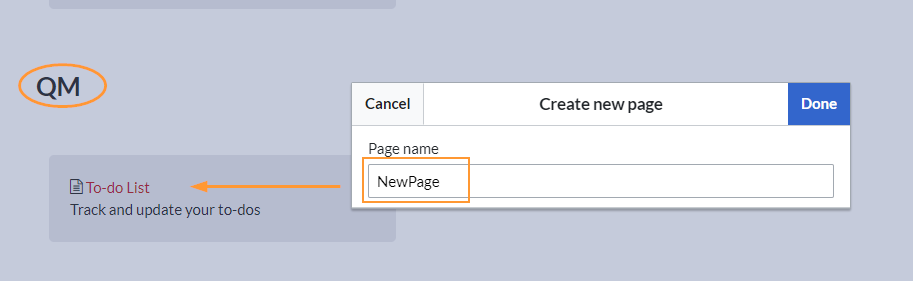
- Force target namespace: The page is always created in the target namespace that is associated with the template, even if the user provided a different namespace prefix. In the screenshot below, the user wants to create the page "NewPage" and then selects a template for the QM namespace. The page is, therefore, created as "QM:NewPage" if this setting is activated.
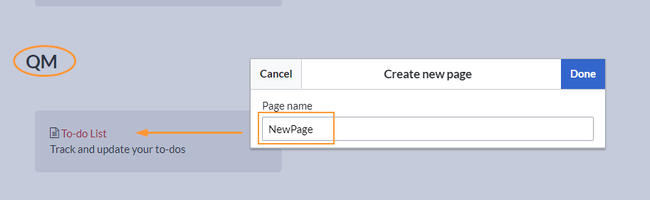
force the namespace of the template

- Hide default templates: Hides the default Empty page template.
- Hide template if the page is not to be created in the target namespace: Depending on the namespace prefix of the page to be created, templates that are associated with other namespaces will not be shown to the user for selection.
BlueSpicePrivacy
- Enable mandatory "Privacy policy" and "Terms of service": Users have to consent to the "Privacy policy" and "Terms of service" to get and to keep access.
- Accept "Privacy policy" and "Terms of service" on login: Accepting the "Privacy policy" and "Terms of service" is integrated into the login process. It is required on first login and everytime a user deactivates the consent in the user preferences.
BlueSpiceProDistributionConnector
- BlueSpice subscription key: Sets the number of users as specified in the subscription contract. If this entry is missing, the number of users is limited to 25.
- OAuth2 public key, OAuth private key: Required if user authentication is configured via OAuth.
Editor (External content)
- Domain whitelist: List of domains whose content can be embedded in the wiki. If no domains are defined, there are no domain restrictions.
raw.githubusercontent.com.
- Field extension whitelist: List of file extensions that can be embedded from external content in the wiki.
BlueSpiceSaferEdit
- Interval for edit check (seconds): Sets the time in seconds for checking if another person is editing the page.
- Show current editor: Shows or hides the name of the user who is currently editing the page.
BlueSpiceTranslationTransfer (farm)
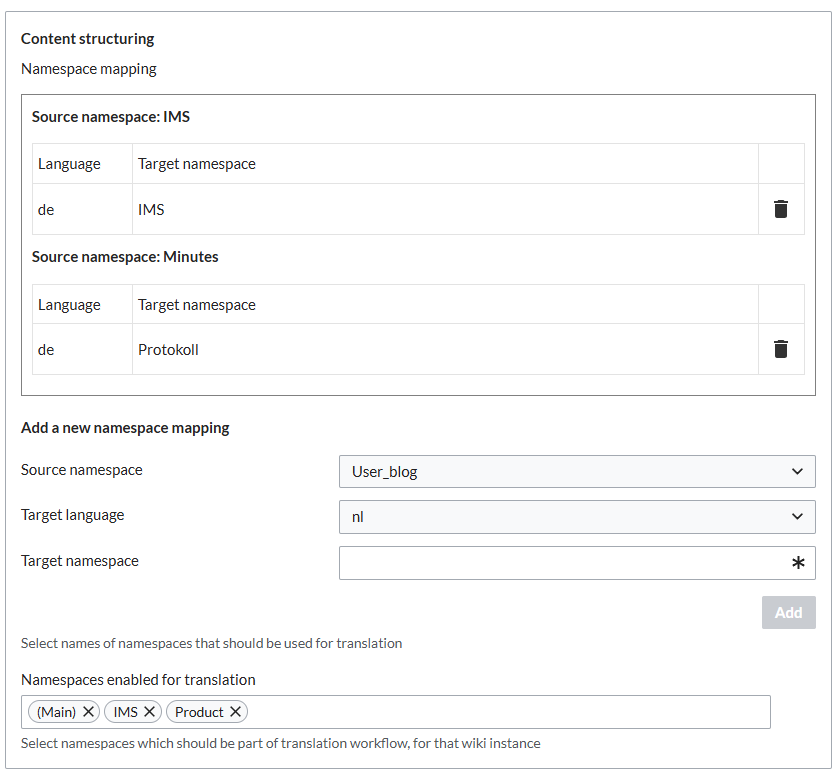
Namespace mapping
- If the namespaces differ between the source and target wikis, they must be correctly mapped to each other.
- For each namespace, the source namespace, the language of the target wiki, and the target namespace are specified.
- Multiple namespaces can bemapped by using the "Add" button.
- Finally, the configuration settings are applied after clicking "Save" in the configuration manager. Do not foget this step!

Namespaces enabled for translation: List of all namespaces of the translation source wiki that are included in the translation process.
BlueSpiceVisualEditorConnector
- Enable VisualEditor for BlueSpice extensions: Disabling this setting removes VisualEditor from extensions such as Page Forms or BlueSpiceSocial extensions.
- Upload type
- Original: User permissions are verified during file upload; file name and namespace of the file can be changed; a category can be assigned and a description of the file is required
- Simple: User permissions are not verified during file upload; the name and namespace of the file can be changed; a category and a description of the file can be provided
- One click: User permissions are not verified during file upload; the image cannot be renamed and no category can be assigned. Only the namespace can, but does not have to be adjusted before uploading)
BlueSpiceWhoIsOnline
- Offline timeout (seconds): The system checks every x seconds if a user logged out and no longer displayed as online. This can be less frequent than the update inteval for newly logged-in users.
ChatBot
- Chatbot name: Display name in the chatbot window.
- Enable AI-generated search summary: Displays the AI search summary in the search center.
ChatIntegration
- Communication: Service licenses of the according providers (e.g.:
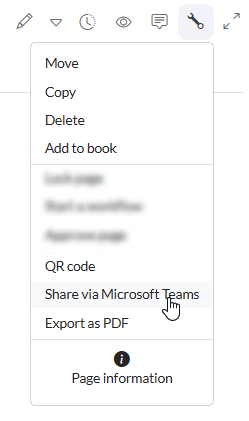
https://teams.microsoft.com/l/meetup-joinn). - Show "Share via Microsoft Teams" action: Displays a link to Microsoft Teams in the "Share" menu of the page tolls. This setting depends on the Teams comminication configuration (MS Teams URL).

Cognitive Process Designer
- Show Processes entry point: Displays a link to the process overview page in the entrypoint links of the main navigation.
ContentStabilization
Quality assurance
- Include handling: If resources are embedded in a page and these resource namespace itself has approval enabled, the following settings can be selected:
| Behavior | |
|---|---|
| Versions that were current at the time of release | Creates an implicit draft when the resource changes after page approval. The resource will be approved together with the next page approval. |
| Approved versions of included pages | Only applies if the resource itself can be approved. The latest approved version is displayed on the approved wiki page. |
| Current versions of included pages | Always shows the most current version of a resource. An implicit draft is not generated. |
- Show not approved pages for following groups: If the
usergroup has been removed from the configuration, users in this group cannot see draft versions. This also applies if they are added as reviewers in a namespace. In this case, only users with thesysopandreviewerpermissions can access drafts, unless other groups are specified. These system groups can then only access drafts via the page's version history. All groups that can see page drafts anywhere in the wiki must be explicitly specified here. This setting applies to the entire wiki and cannot be restricted to namespaces. - Allow viewing of first draft version for users who can normally not see drafts: If this setting is enabled, all users with read permissions can see the first draft. If disabled, only groups from the setting "The following groups can see draft versions" can see first drafts.
- Update semantic properties from approved versions only: The attribute value of the page is set from the stable version of the page and not from the draft version. When this setting is deactivated, the draft value of the property is applied to the page instead of the approved value.
- Use only approved content for the AI chatbot: Excludes draft versions as available content sources (only applies for pages where content stabilization (approval feature) is activated.
Searching and Navigation
- Index only approved versions: Page names and contents of draft pages are not taken into account by the search. If this checkbox is activated, the search index has to be recreated.
Export
- Show stabilization information in PDF export:
Prints the timestamp for the last approved version below the page headings in the PDF (date of approval and date of last edit before approval).
EnhancedUpload
Editor
Sets the defaults for the advanced image settings when uploading and embedding an image into the wiki via drag-and-drop functionality. The default settings determine the orientation, type, and size of the image. These can be adjusted after embedding via the "Advanced settings" of the image on the page.
System
- Allow mismatched MIME types (potential security risk): If the file extension of a file does not match the actual file type, it will still be uploaded if it is listed as an allowed file extension in the wiki.
DrawioEditor
- Backend URL: Allows to change the Drawio editor to an external URL. The local default URL is
https://<wikidomain>/_diagram/.
- Edit Mode: The default setting for the Drawio tag included on pages. This setting can be overridden for each diagram on the wiki page.
- Page view: Displays the Drawio editor in the content area of the wiki page.
- Fullscreen view: When the Drawio editor is opened, the wiki interface is completely hidden.
Enhanced StandardUIs
Enhanced Upload
Minutes
- Show entrypoint "Minutes": Adds a link to the Main Page of the Minutes namespace to the main navigation.
- Minutes title template: Determines the suggested default title for new pages that are created from the Minutes dashboard.
NumberHeadings
- Show heading numbering: Displays the numbering from the table of contents before the section headings on a page.

Activated heading numbers

PDFCreator

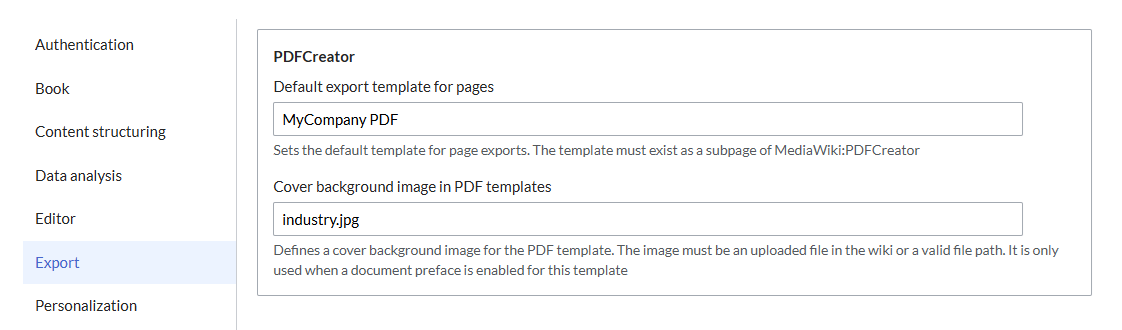
- Default export template for pages: The default template is shown when users select an export template in "Page" mode. It is also used when clicking on the PDF link for the Content Droplet PDF Link .
- Default cover background image: Admins can also set a default cover background image. It is applied whenever the document preface of the template contains the standard "intro"-wrapper: Default image:
<div class="pdfcreator-intro">
....
</div>
/app/bluespice/w/extensions/BlueSpiceBookshelf/data/common/images/bs-cover.pngOutput:
Default PDF cover image

The image path can be deleted. In this case, no image will be output by default.
Alternatively, an uploaded image file can be specified (without a namespace prefix), for example: industry.jpg

If a book has its own bookshelf-image, this will be generated in the PDF when exporting directly from the special page "Books".
PluggableAuth
After completing a new entry, click Add and then in addition Save the page itself.
- Button label: The system message key, e.g., SSOButtonLabel that lets you add the label at
MediaWiki:SSOButtonLabelto be used for the button onSpecial:UserLogin. Note that the message must be in the instance language since it cannot be localized on wiki.
- Plugin name: See the list of supported plugins.
- Data object (JSON): A configuration array passed to the authentication plugin. The content depends on the authentication plugin. This may be optional or required depending on the authentication plugin.
- Group sync settings (JSON): Configuration array for group synchronization. See https://www.mediawiki.org/wiki/Extension:PluggableAuth#Group_Synchronization
SimpleBlogPage
Show entrypoint "Blog": Adds a link to the page Special:ArticlesHome in the main navigation.
Spreadsheets
Show entrypoint "Spreadsheets": Adds a link to the page Special:Spreadsheets in the main navigation.
Other settings
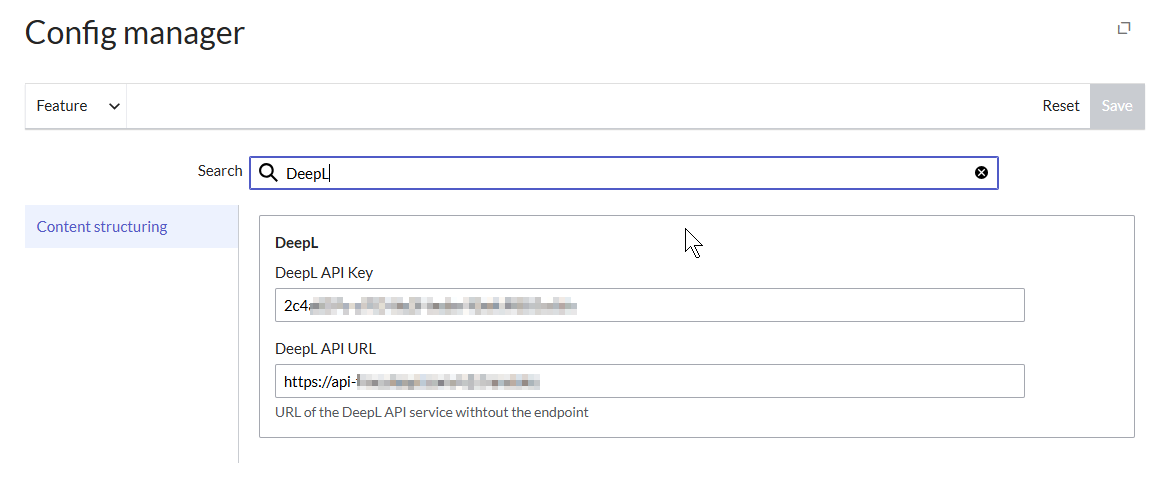
DeepL
The DeepL API configuration can be accessed from the Feature System.

- For the BlueSpiceTranslationTransfer extension, which is used to translate content from a source wiki to other wikis, the key must be specified in the source wiki.
- For the AdhocTranslation extension, which is used for ad-hoc translation of content within a single wiki instance, the key must be specified in that specific instance.