The '''ContentStabilization''' extension activates an approval mechanism for namespaces. New versions of a page are initially marked as drafts. Users with approval rights can then review and approve the page.
The '''ContentStabilization''' extension activates an approval mechanism for namespaces. New versions of a page are initially marked as drafts. Users with approval rights can then review and approve the page.
==Activating page approval==
==Activating page approval==
Drafts are activated via the namespace settings (admin rights are required). {{Step select menu|link=Namespaces|menu=Wiki actions}}. Choose the namespace that should work with approvals. Make sure that the Approvals setting is activated.
Drafts are activated via the namespace settings (admin rights are required). {{Step select menu|link=Namespaces|menu=Wiki actions}}. Choose the namespace that should work with approvals. Make sure that the '''Approvals''' setting is activated.
===Existing Pages===
===Existing Pages===
Line 17:
Line 17:
=== Drafts ===
=== Drafts ===
If a page is edited and saved multiple times in draft mode, each edit is listed in the version history. The Status column shows which revision is a draft and which is approved. Additionally, approved versions are highlighted in color.
If a page is edited and saved multiple times in draft mode, each edit is listed in the version history. The '''Status''' column shows which revision is a draft and which is approved. Additionally, approved versions are highlighted in color.
[[File:Extension_ContentStabilization_version_history.png|alt=Revision history of a pag with 4 approved versions and some draft versions in between|center|thumb|650x650px|Approved versions]]
[[File:Extension_ContentStabilization_version_history.png|alt=Revision history of a pag with 4 approved versions and some draft versions in between|center|thumb|650x650px|Approved versions]]
Line 33:
Line 33:
! style="" |Behaviour of the approved content page -
! style="" |Behaviour of the approved content page -
'''No resource approval mechanism'''
'''No resource approval mechanism'''
[[File:CS namespace resource no approval.png|alt=Namespace settings dialog|center|thumb|450x450px|Resource without approval feature]]
! style="width:500px;" |Behaviour of the approved content page -
! style="width:500px;" |Behaviour of the approved content page -
'''Approval mechanism via resource namespace'''
'''Approval mechanism via resource namespace'''
[[File:CS namespace resource with approval.png|alt=Namespace manager settings|center|thumb|450x450px|Resource with approval feature]]
|-
|-
! style="" |'''Versions that were current at the time of approval'''
! style="" |'''Versions that were current at the time of approval'''
Line 44:
Line 40:
| style="" class="" |'''Resource display:'''
| style="" class="" |'''Resource display:'''
*The '''embedded version of the resource at the time of page approval''' is displayed on the approved version of the page.
*The '''embedded version of the resource at the time of page approval''' is displayed on the approved version of the page.
*An implicit draft is generated.[[File:CS resource yes stable1.png|alt=screenshot of the approved page with the frozen resource|center|thumb|450x450px|Approved page version with the version of the resource that was embedded at the time of page approval]]
*An implicit draft is generated.
'''Ressource approval:'''
'''Ressource approval:'''
* The resource is updated '''the next time the page is approved'''. If the resource is embedded on multiple pages in the wiki, each page must be approved separately.
* The resource is updated '''the next time the page is approved'''. If the resource is embedded on multiple pages in the wiki, each page must be approved separately.
[[File:CS resource yes stable0.png|alt=Page draft with preview of changed resource and resource change banner|center|thumb|450x450px|Page draft due to change of embedded resource]]
| style="width:500px;" |'''Resource display:'''
| style="width:500px;" |'''Resource display:'''
* The '''embedded version of the resource at the time of page approval''' is displayed on the approved version of the page.
* The '''embedded version of the resource at the time of page approval''' is displayed on the approved version of the page.
*An implicit draft is generated.[[File:CS resource yes stable1.png|alt=screenshot of the approved page with the frozen resource|center|thumb|450x450px|Approved page version with the version of the resource that was valid at the time of page approval]]
*An implicit draft is generated.
Approved page version with the version of the resource that was valid at the time of page approval
'''Ressource approval:'''
'''Ressource approval:'''
*The approval status of the ressource has no effect on the page.
*The approval status of the ressource has no effect on the page.
*The resource is updated '''the next time the page is approved'''. If the resource is embedded on multiple pages in the wiki, each page must be approved separately.[[File:CS resource yes stable0.png|alt=Page draft with preview of changed resource and resource change banner|center|thumb|450x450px|Page draft due to change of embedded resource]]
*The resource is updated '''the next time the page is approved'''. If the resource is embedded on multiple pages in the wiki, each page must be approved separately.
|-
! style="" |Approved versions of included pages
| style="" class="" |'''Resource display:'''
* This setting has no effect since the resource itself has no approval mechanism.
* The behavior is the same as for setting "'''Versions that were current at the time of approval''' '''(Default)'''".
| style="width:500px;" |'''Resource display:'''
*The '''approved version of the resource''' is shown.
'''Resource approval:'''
*This is done exclusively via the resource itself.
*The page does not indicate whether a draft version of the resource exists.
|-
! style="" |Current versions of included pages
| style="" |'''Resource display:'''
*The '''latest version''' of the resource is always displayed.
* An implicit draft is not generated.
'''Resource approval:'''
*The resource itself is neither necessary nor possible.
| style="" |'''Resource display:'''
*The '''latest version''' of the resource is always displayed.
* An implicit draft is not generated.
'''Resource approval:'''
*The approval status of the resource has no effect on the page.
|}
|}
===Read-permissions for drafts===
By default, all users can see a page's drafts, including users with only read permissions.
To hide drafts from users, the '''user''' group must be removed from the configuration. This setting then applies to the entire wiki and cannot be further restricted to specific namespaces.
An administrator changes the groups that can see drafts in the '''Show draft versions for the following groups''' box.<br />{{Textbox|boxtype=warning|header=Attention|text=If the group '''user''' is off is removed from the configuration, users in this group cannot see draft versions even if they are assigned a workflow task.|icon=yes}}
After removing the group '''user''', the desired group(s ), e.g. the group '''editor''', can be added to the configuration and saved.
{{Textbox|boxtype=note|header=Note|text=If no user groups are specified in the configuration field, even users with review rights and sysop users will not see a visual status indicator of the page. Instead, you only have access to drafts through the page's history. <br> <br> In order for administrators to see the status directly on the page, they must be added to a group listed here in the configuration.|icon=yes}}
=== Read permissions for first drafts===
By default, first drafts are visible to all users who have read permissions in a namespace. However, if first drafts are only visible to those users who can generally view page drafts, this can be done in the configuration management by selecting ''Allow viewing of first draft version for users who can normally not see drafts'' to be disabled.
===Summary: Read Permissions for Draft Pages===
'''Define groups:'''
*Group '''user''': Only the user groups that have been given this right in the configuration management can see first drafts and other drafts. By default, this is the user group (=all users who have reading rights in a wiki).
*Adjust groups: In the configuration management, the reading rights for (first) drafts can be restricted to other groups.
*Group '''sysop''': Users in group '''sysop''' can always view drafts through the history. The sysop group can therefore not be set explicitly in the configuration. If '''sysop''' users can directly see the approval status on the page, they need to be added to a group with read permissions for drafts. <br>
'''Export draft pages:'''
*Single page export: Users with reading rights on a draft page can print it directly as a PDF.
*Book export: Only approved pages are exported. If there is only a first draft of a page, it will be exported. '''Exception:''' If the book is printed by a user who does not have access to the first draft, the first draft will not be printed out in the book. Instead, the PDF shows the following message:[[File:CS first draft export.png|alt=Error message in the PDF|center|thumb|550x550px|Permissions error PDF export]]
===Property QM/Document_state ===
When switching between the approved page and the draft page, the document state can be displayed on the respective page view (stable vs. unstable page view). To do this, the following tag can be included in a page or template:<syntaxhighlight lang="text">
The Special page <code>Special:Quality_management_overview</code> allows all users with '''reviewer''' permissions to view and filter a list of wiki pages and their review status. Pages for which a user does not have read permissions are not shown.
==Approving a page when the title area is hidden==
If the title area on a page is hidden using the <code><nowiki>__HIDETITLE__</nowiki></code> toggle, the page can be approved from the {{Icon|bi bi-wrench|||}} '''More page actions''' menu in the title area tools.
==Configuration==
The approval mechanism is managed in the [[Extension/BlueSpiceConfigManager#ContentStabilization|Configuration manager]]
Latest revision as of 14:07, 17 November 2026
SkySapphire
The ContentStabilization extension activates an approval mechanism for namespaces. New versions of a page are initially marked as drafts. Users with approval rights can then review and approve the page.
Drafts are activated via the namespace settings (admin rights are required). In the Wiki actions menu, select Namespaces. Choose the namespace that should work with approvals. Make sure that the Approvals setting is activated.
Existing Pages
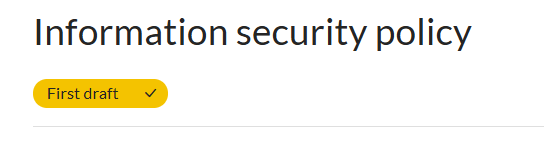
After Approval is activated for a namespace, all existing pages in the namespace appear in First draft mode.
Page in Frist draft state
By default, the page status is displayed in the title area of every page with approval function .
Alternatively, the status info can be moved below the page content with a skin setting for BlueSpiceDiscovery in the Configuration manager.
First drafts
When a new page is created and saved for the first time, its status is First draft until the page gets approved. By default, first drafts are visible to all users with read permissions. However, this can be restricted to individual user groups in the settings of the Configuration manager.
Drafts
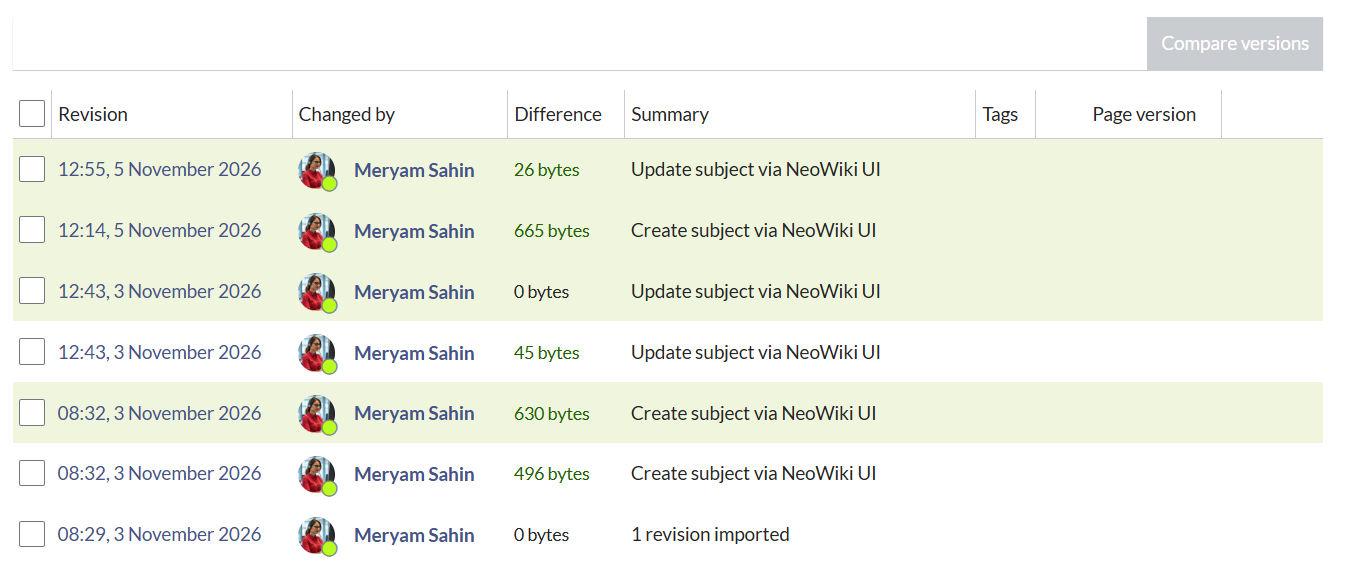
If a page is edited and saved multiple times in draft mode, each edit is listed in the version history. The Status column shows which revision is a draft and which is approved. Additionally, approved versions are highlighted in color.
Approved versions
Approving a page
A user with reviewer permissions can approve the page from the status message in the title area of the page. The approval comment is logged in the page's version history. The new approval status is then shown in the title area.
Changes to embedded resources
If a page uses templates or contains other files such as images and embedded PDFs, or if content from other pages is transcluded and modified after the page was approved, those changes must also be considered. Their approval is determined by the settings in the Configuration manager.
If the approval mechanism is activated in a resource namespace (e.g. Template, File) in retrospect, all existing pages in the resource namespace are then in first draft. If the wiki is configured so that not all users can see drafts, the resources may need to be initially approved via server script if this cannot be accomplished manually. See: Approvals via server script.
Setting
Behaviour of the approved content page -
No resource approval mechanism
Behaviour of the approved content page -
Approval mechanism via resource namespace
Versions that were current at the time of approval
(Default)
Resource display:
The embedded version of the resource at the time of page approval is displayed on the approved version of the page.
An implicit draft is generated.
Ressource approval:
The resource is updated the next time the page is approved. If the resource is embedded on multiple pages in the wiki, each page must be approved separately.
Resource display:
The embedded version of the resource at the time of page approval is displayed on the approved version of the page.
An implicit draft is generated.
Approved page version with the version of the resource that was valid at the time of page approval
Ressource approval:
The approval status of the ressource has no effect on the page.
The resource is updated the next time the page is approved. If the resource is embedded on multiple pages in the wiki, each page must be approved separately.
Approved versions of included pages
Resource display:
This setting has no effect since the resource itself has no approval mechanism.
The behavior is the same as for setting "Versions that were current at the time of approval(Default)".
Resource display:
The approved version of the resource is shown.
Resource approval:
This is done exclusively via the resource itself.
The page does not indicate whether a draft version of the resource exists.
Current versions of included pages
Resource display:
The latest version of the resource is always displayed.
An implicit draft is not generated.
Resource approval:
The resource itself is neither necessary nor possible.
Resource display:
The latest version of the resource is always displayed.
An implicit draft is not generated.
Resource approval:
The approval status of the resource has no effect on the page.
Read-permissions for drafts
By default, all users can see a page's drafts, including users with only read permissions.
To hide drafts from users, the user group must be removed from the configuration. This setting then applies to the entire wiki and cannot be further restricted to specific namespaces.
An administrator changes the groups that can see drafts in the Show draft versions for the following groups box.
AttentionIf the group user is off is removed from the configuration, users in this group cannot see draft versions even if they are assigned a workflow task.
After removing the group user, the desired group(s ), e.g. the group editor, can be added to the configuration and saved.
NoteIf no user groups are specified in the configuration field, even users with review rights and sysop users will not see a visual status indicator of the page. Instead, you only have access to drafts through the page's history.
In order for administrators to see the status directly on the page, they must be added to a group listed here in the configuration.
Read permissions for first drafts
By default, first drafts are visible to all users who have read permissions in a namespace. However, if first drafts are only visible to those users who can generally view page drafts, this can be done in the configuration management by selecting Allow viewing of first draft version for users who can normally not see drafts to be disabled.
Summary: Read Permissions for Draft Pages
Define groups:
Group user: Only the user groups that have been given this right in the configuration management can see first drafts and other drafts. By default, this is the user group (=all users who have reading rights in a wiki).
Adjust groups: In the configuration management, the reading rights for (first) drafts can be restricted to other groups.
Group sysop: Users in group sysop can always view drafts through the history. The sysop group can therefore not be set explicitly in the configuration. If sysop users can directly see the approval status on the page, they need to be added to a group with read permissions for drafts.
Export draft pages:
Single page export: Users with reading rights on a draft page can print it directly as a PDF.
Book export: Only approved pages are exported. If there is only a first draft of a page, it will be exported. Exception: If the book is printed by a user who does not have access to the first draft, the first draft will not be printed out in the book. Instead, the PDF shows the following message:Error message in the PDFPermissions error PDF export
Property QM/Document_state
When switching between the approved page and the draft page, the document state can be displayed on the respective page view (stable vs. unstable page view). To do this, the following tag can be included in a page or template:
The Special page Special:Quality_management_overview allows all users with reviewer permissions to view and filter a list of wiki pages and their review status. Pages for which a user does not have read permissions are not shown.
If the title area on a page is hidden using the __HIDETITLE__ toggle, the page can be approved from the More page actions menu in the title area tools.