No edit summary |
No edit summary |
||
| Line 61: | Line 61: | ||
=== Communication === | === Communication === | ||
A wiki administrator needs to add the service provider license in the section ''Communication'' for extension ''ChatIntegration''. | A wiki administrator needs to add the service provider license in the section '''Communication''' for extension '''ChatIntegration'''. | ||
=== Skinning === | === Skinning === | ||
* '''Show "share via chat" action:''' Activates the share link in the page tools. | * '''Show "share via chat" action:''' Activates the share link in the page tools. | ||
Latest revision as of 16:09, 9 November 2026
Overview
Users can interact with the wiki directly from their preferred chat client. Currently, the following chat clients are supported:
- MS Teams
- RocketChat
- Slack
If you do not see the BlueSpice chatbot in any of these applications, your wiki does not have the chat integration available yet.
Add your chat client username to the wiki
Before you can interact with the wiki chatbot in your chat client that is connected to your wiki, you need to provide your username for that application in your wiki user profile.
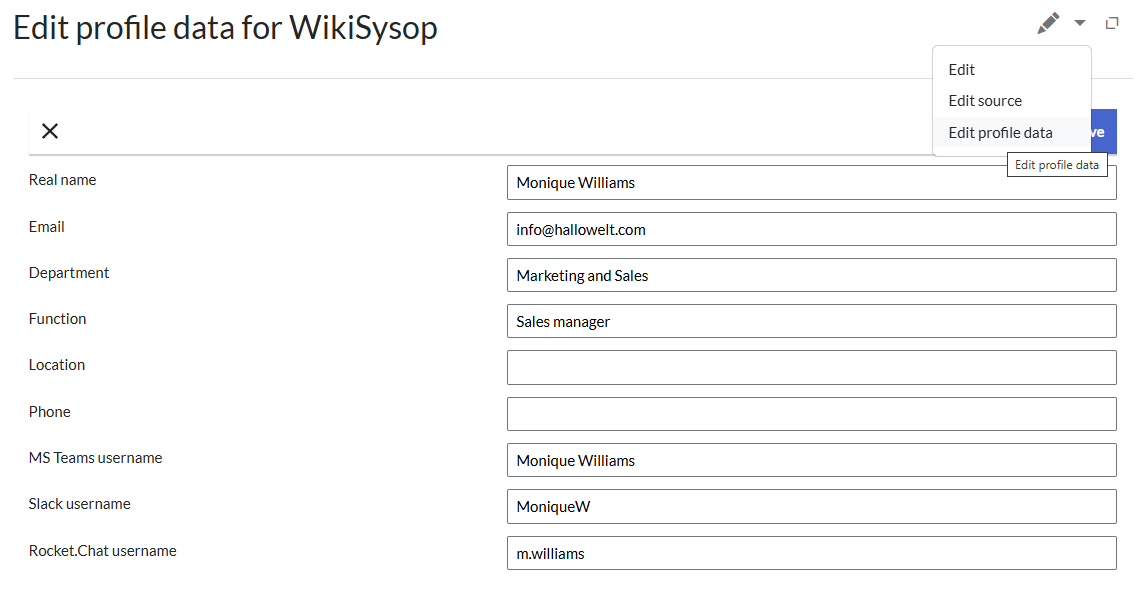
- In your user menu, select Profile.
- Select Edit profile data.
- Enter the username for any of the available chat clients (this might differ from screenshot).
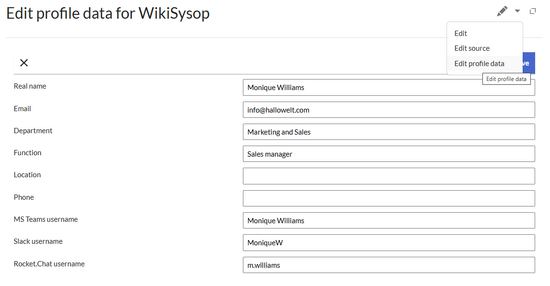
Chat client usernames - Save the page.

Once your username is available in the wiki, you can switch to your communication client and communicate with the wiki bot user.
Locate your Slack username
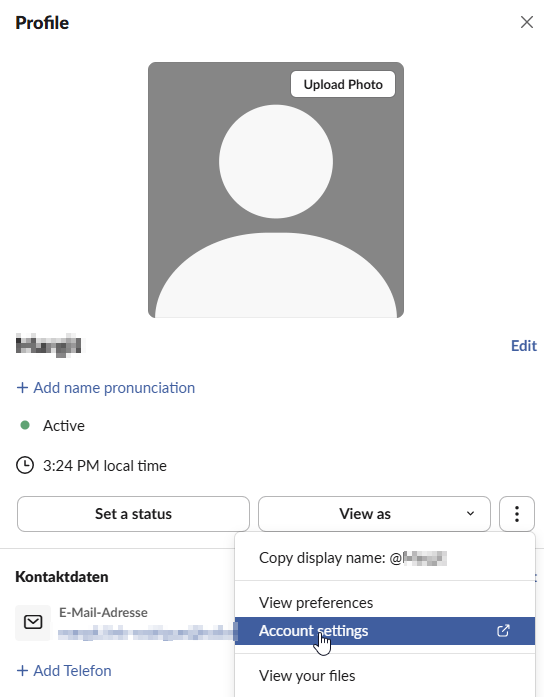
Slack usually only shows your display name on the interface. To find your actual Slack username:
- Select the "three dots"-menu
in your user profile. - Select Account settings.
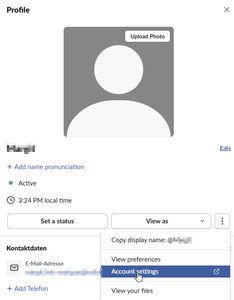
Finding your Slack username - Scroll to the end of the Account settings page where you should see your username.

MS Teams

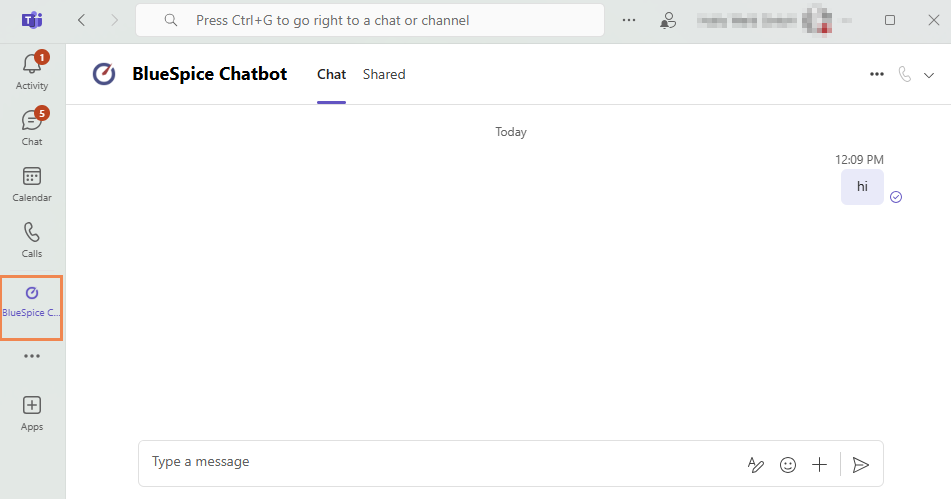
- Log into your MS Teams account.
- Select the BlueSpice Chatbot icon in the app bar.
- Type any prompt related to the content in your BlueSpice wiki in the corresponding field.
Slack
- Select the BlueSpice Chatbot icon in the app bar.
- Type any prompt related to the content in your BlueSpice wiki in the corresponding field.
RocketChat
Share a page via chat (MS Teams)
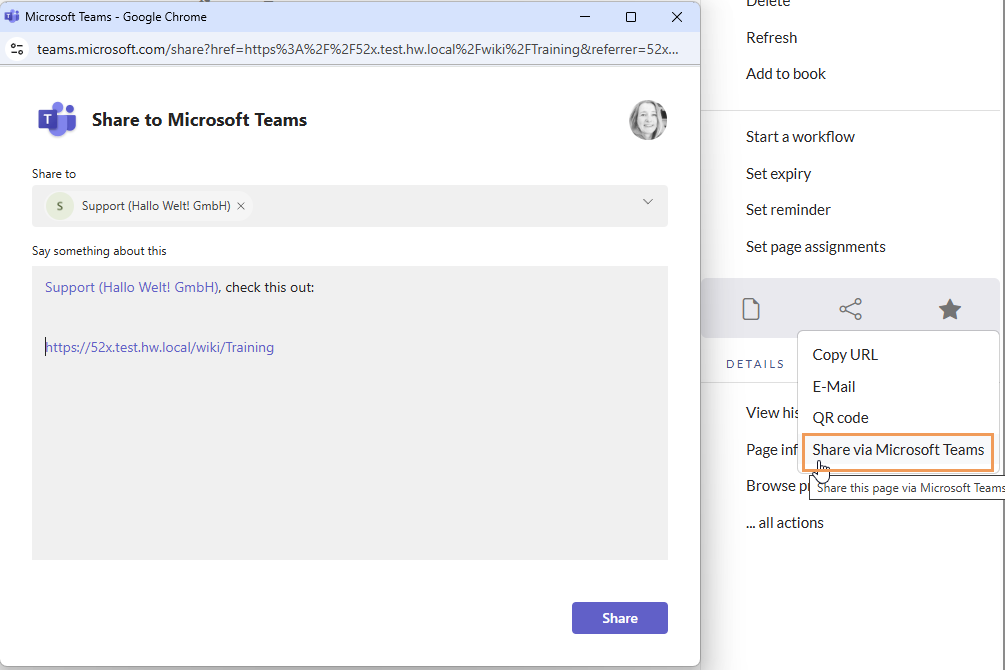
The wiki can be configured to show a "Share via chat" link in the page tools. Clicking this link opens the MS Teams chat window with a chat message that includes a link to the current page. Which chat is opened from this link has to be configured on the server. There is no GUI for this configuration available.

Notifications
You can set your notifications preferences to send notifications to a chat channel.
- Go to Special:Enhanced_Preferences.
- Select the menu item Notifications.
- Create or edit a subscription set.
- Select the chat clients you want to receive notifications from.
Configuration
The following configurations can be made directly in the configuration manager:
Communication
A wiki administrator needs to add the service provider license in the section Communication for extension ChatIntegration.
Skinning
- Show "share via chat" action: Activates the share link in the page tools.