No edit summary |
No edit summary |
||
| (11 intermediate revisions by the same user not shown) | |||
| Line 1: | Line 1: | ||
== | == Configuration page == | ||
Users with admin permissions can customize the logo, favicon, colors and font settings of the wiki. | |||
{{Step select menu|menu=Wiki actions|link=Skin}} to access the skin configuration page — commonly also called '''FlexiSkin'''. | |||
'' | If a subwiki does not have any skin changes activated, the settings of the '''Main wiki''' are applied. To override any custom settings of the '''Main wiki''' in a subwiki, you can simply activate the skin settings without adding any customizations. The default '''Eclipse''' skin settings will then be applied. | ||
== Images == | |||
=== Logo and favicon === | |||
Select a file from your local drive or drag the file <span style="color: rgb(51, 51, 51)">into the dotted area of the Logo or Favicon upload area. If this is the only change you make, select '''Preview''' in the toolbar or '''Save & activate''' the change. The favicon can be any file any type your wiki allows in the [[Extension/BlueSpiceConfigManager|Config manager]] (by default: png, gif, jpg, jpeg).</span> | |||
< | {{Textbox|boxtype=important|header=Refresh:|icon=|text=If you don't see the changes in the wiki after you Save & activate your changes, you need to clear your browser cache (<code>Ctrl</code>+ <code>F5</code>).|bgcolor=}} | ||
{{Textbox|boxtype=important|icon= | ==Layout colors== | ||
If you delete a color and the settings page is saved with one or more empty color values, the standard colors of the Eclipse skin are saved as values instead. | |||
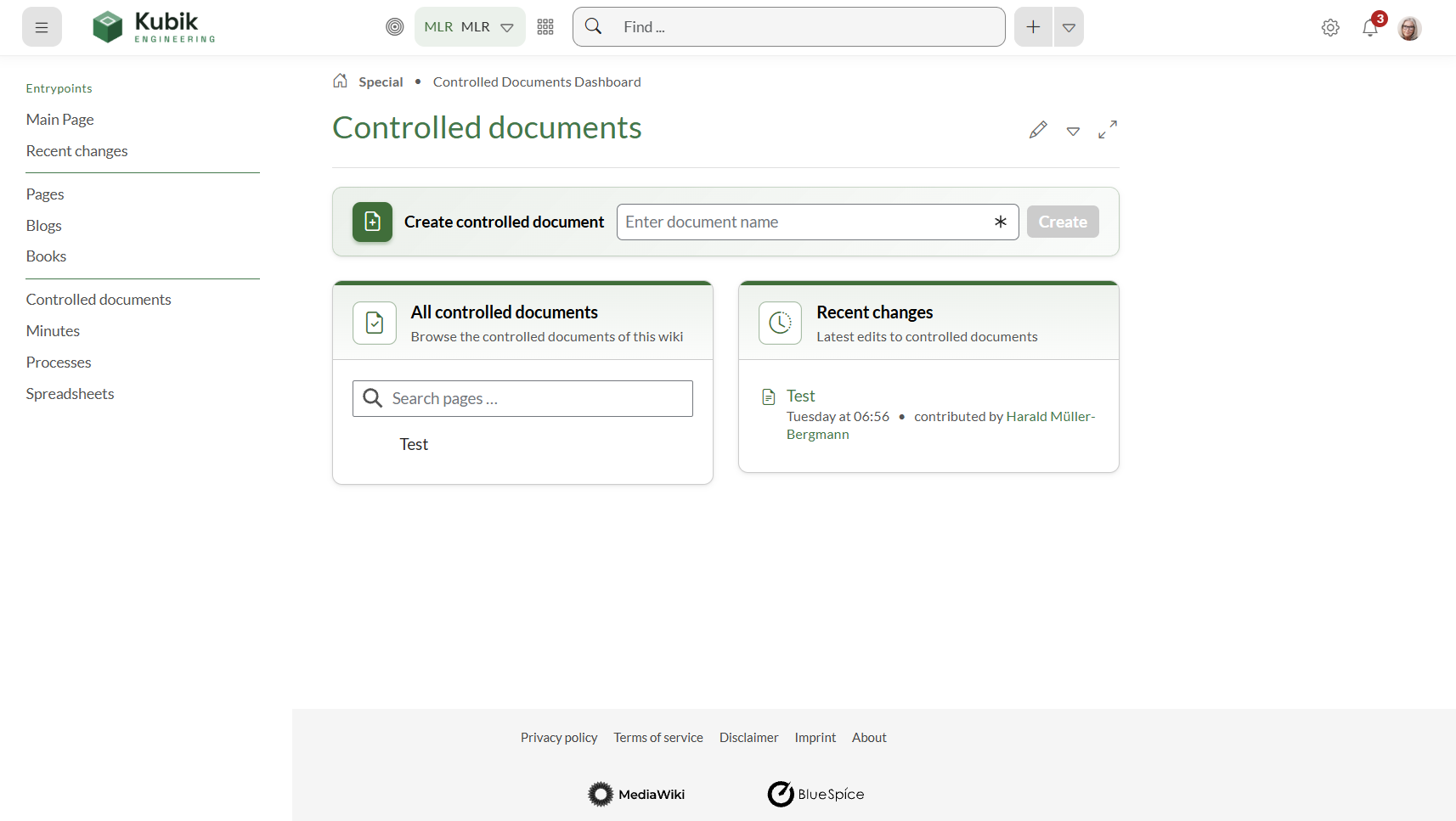
[[File:Extension FlexiSkin - customization.png|alt=Example customization of a dashboard page with green accent colors and a ficticious "Kubik Engineering" logo |center|thumb|750x750px|Customized skin]] | |||
*'''Header color:''' Color settings for the Header bar. These colors also apply to its mega menus. | |||
*'''Footer colors:''' Color settings for the Footer. | |||
*'''Sidebar colors:''' Color settings for the Main navigation and the Info panel.<br /> | |||
The following options to enter a color value are available: | |||
*'''Standard color palette:''' A standard color can be selected by clicking on a color. | |||
*'''Pencil symbol:''' Click on the pencil symbol to select a color from the color mixer. | |||
*'''Manually entering a value:''' To provide a custom value (for example from your CI colors), enter an [[wikipedia:Web_colors|HTML color name]] . | |||
== Content == | |||
=== Colors=== | |||
Here you can adjust the background, font and link colors. | |||
{{Textbox|boxtype=important|header=Red link color:|text=Broken links in the wiki are shown in red by default so that they can be easily identified. You should carefully consider whether you want to deviate from this convention.|icon=no}} | |||
=== Font === | |||
The font settings only apply to the text in the content area. The text in other areas such as in the Main navigation and other menus is not affected. | |||
===Layout=== | |||
If you want to change the layout width just test it on many devices to make sure your setting works as intended. Other wiki users work with different display settings and can be negatively affected by this change. Unless you have a specific reason to change the content width, you shouldn't adjust this setting. The standard content width is 61.25 rem. | |||
===Section headings=== | |||
You can adjust the color, font size and underlining for all heading levels. You can also change the unit for the font settings (e.g. ''px'' instead of ''rem''). If you are not familiar with the differences between these units, just leave the default setting, ''rem''. This is based on the superordinate size setting in the wiki. In contrast, [[wikipedia:Em_(typography)|''em'' sizes]] are in relation to the enclosing container. | |||
== | ==Free CSS== | ||
For additional customizations, you can use the ''Free CSS'' field if you are familiar with [https://de.wikipedia.org/wiki/Cascading_Style_Sheets Cascading Style Sheets (CSS)]. Here are some examples. | |||
=== | {{Textbox|boxtype=note|header=Inheritance:|icon=|text=If the same styles are defined in both 'FlexiSkin' and in 'MediaWiki:Common.css', the styles from Common.css are applied.|bgcolor=}} | ||
=== Bigger logo === | |||
To increase the logo size, the width can be adjusted. A value of 195px looks like a good starting point. | |||
<syntaxhighlight lang="css"> | |||
/*logo width*/ | |||
.navbar a.mw-wiki-logo { | |||
width: 195px; | |||
} | |||
</syntaxhighlight> | |||
== Dashboard colors == | |||
If you want to match the dashboard colors in your wiki, the easiest way is to match your Wiki color in the Wiki manager. This change requires Admin permissions in the Main wiki. | |||
To | == Customization tips == | ||
To avoid problems with readability and accessibility, apply color changes only to accent colors. In the example screenshot above, a green value (<code>#36794c</code>) from the logo was used for the following settings: | |||
Layout colors: | |||
* Header color: Header highlight | |||
* Sidebar colors: Section headings, Icons, Separator lines | |||
Content: | |||
* | * Colors: Valid link | ||
* | * Section headings: Header 1(h1) Color | ||
=== Contrast checker === | |||
To avoid accessibility issues, ensure that your foreground-background contrast is larger than 4.5:1 for all text and links. You can use the [https://webaim.org/resources/linkcontrastchecker/ WebAIM contrast checker]. | |||
Latest revision as of 10:33, 23 October 2026
Configuration page
Users with admin permissions can customize the logo, favicon, colors and font settings of the wiki.
In the Wiki actions menu, select Skin to access the skin configuration page — commonly also called FlexiSkin.
If a subwiki does not have any skin changes activated, the settings of the Main wiki are applied. To override any custom settings of the Main wiki in a subwiki, you can simply activate the skin settings without adding any customizations. The default Eclipse skin settings will then be applied.
Images
Logo and favicon
Select a file from your local drive or drag the file into the dotted area of the Logo or Favicon upload area. If this is the only change you make, select Preview in the toolbar or Save & activate the change. The favicon can be any file any type your wiki allows in the Config manager (by default: png, gif, jpg, jpeg).
Ctrl+ F5).
Layout colors
If you delete a color and the settings page is saved with one or more empty color values, the standard colors of the Eclipse skin are saved as values instead.

- Header color: Color settings for the Header bar. These colors also apply to its mega menus.
- Footer colors: Color settings for the Footer.
- Sidebar colors: Color settings for the Main navigation and the Info panel.
The following options to enter a color value are available:
- Standard color palette: A standard color can be selected by clicking on a color.
- Pencil symbol: Click on the pencil symbol to select a color from the color mixer.
- Manually entering a value: To provide a custom value (for example from your CI colors), enter an HTML color name .
Content
Colors
Here you can adjust the background, font and link colors.
Font
The font settings only apply to the text in the content area. The text in other areas such as in the Main navigation and other menus is not affected.
Layout
If you want to change the layout width just test it on many devices to make sure your setting works as intended. Other wiki users work with different display settings and can be negatively affected by this change. Unless you have a specific reason to change the content width, you shouldn't adjust this setting. The standard content width is 61.25 rem.
Section headings
You can adjust the color, font size and underlining for all heading levels. You can also change the unit for the font settings (e.g. px instead of rem). If you are not familiar with the differences between these units, just leave the default setting, rem. This is based on the superordinate size setting in the wiki. In contrast, em sizes are in relation to the enclosing container.
Free CSS
For additional customizations, you can use the Free CSS field if you are familiar with Cascading Style Sheets (CSS). Here are some examples.
Bigger logo
To increase the logo size, the width can be adjusted. A value of 195px looks like a good starting point.
/*logo width*/
.navbar a.mw-wiki-logo {
    width: 195px;
}
Dashboard colors
If you want to match the dashboard colors in your wiki, the easiest way is to match your Wiki color in the Wiki manager. This change requires Admin permissions in the Main wiki.
Customization tips
To avoid problems with readability and accessibility, apply color changes only to accent colors. In the example screenshot above, a green value (#36794c) from the logo was used for the following settings:
Layout colors:
- Header color: Header highlight
- Sidebar colors: Section headings, Icons, Separator lines
Content:
- Colors: Valid link
- Section headings: Header 1(h1) Color
Contrast checker
To avoid accessibility issues, ensure that your foreground-background contrast is larger than 4.5:1 for all text and links. You can use the WebAIM contrast checker.